
Display inventory threshold message instead of quantity
If you prefer not to display the available inventory quantity at a specific location, you can set an inventory threshold message.
What is an inventory threshold message?
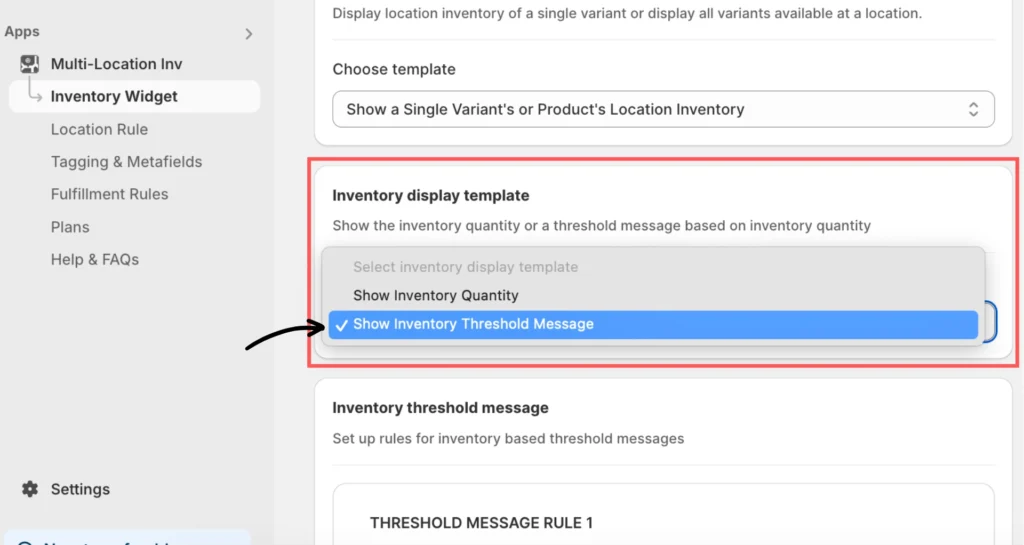
When selected in the Inventory Display Template, the inventory threshold message lets you show threshold messages, such as “High stock,” “Low stock,” and “Sold out,” instead of the usual inventory quantity.
Set the rule in the Inventory Display Template
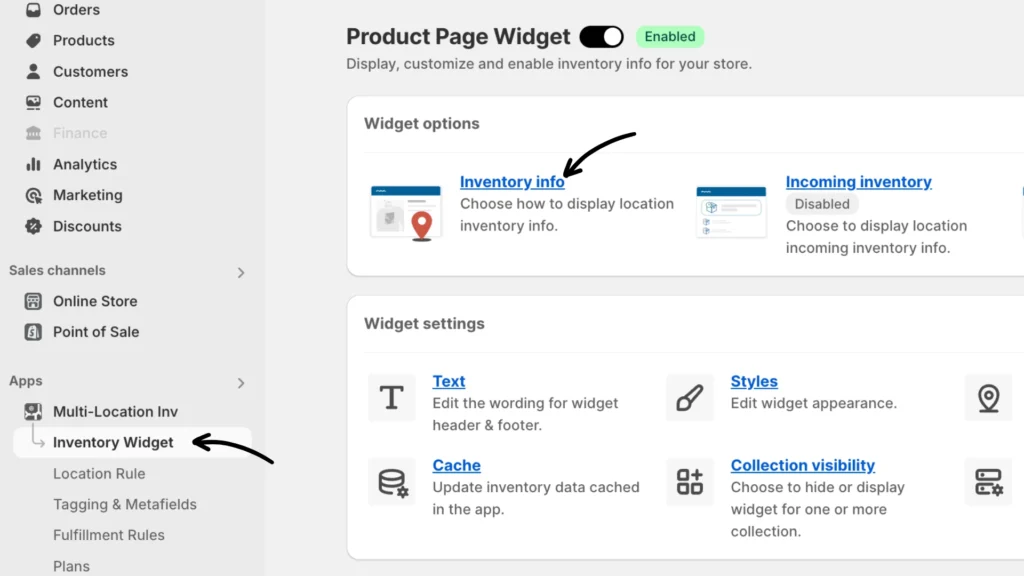
Navigate to Inventory Widget > Inventory Info setting of the app.
Look for “Inventory display template.” This is where you can make a switch to Show Inventory Threshold Message instead.
Configure the threshold message
You can configure your threshold message based on the two available widget templates. See Inventory widget templates for more information.
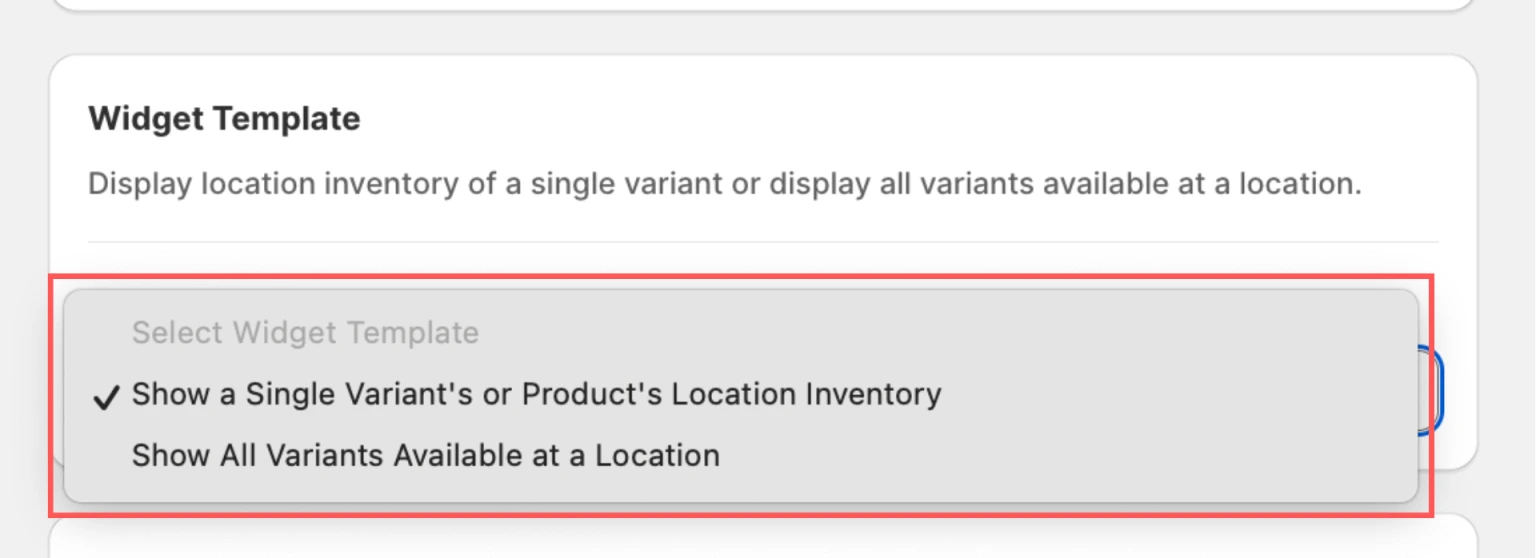
Template 1: Show a Single Variant or Product’s Location Inventory
The threshold message will appear alongside each location. You can customize both the location name and the threshold message using the format {{location-name}} - {{threshold-message}} within the THRESHOLD MESSAGE RULE setting of the Inventory Threshold Message:
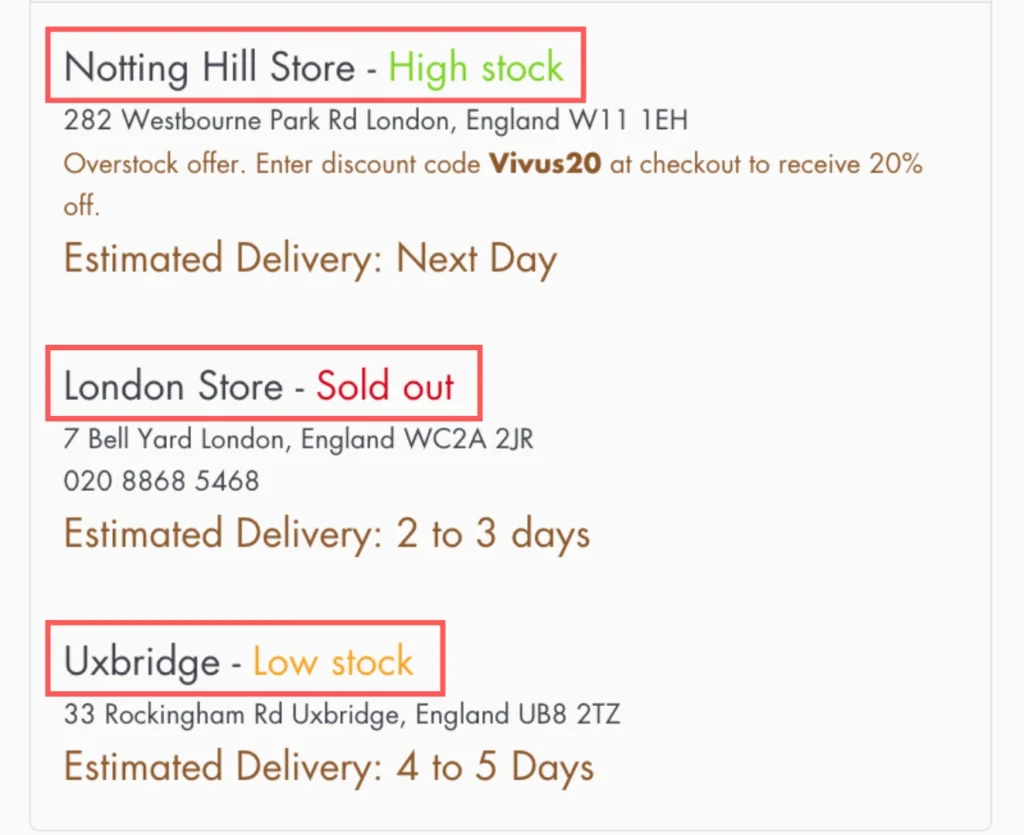
Note: Use {{qty}} to display available quantity. {{threshold-message}} will be replaced by the text found in the “Show message“ box.
Template 2: Show All Variants Available at a Location
This will showcase the threshold message alongside all available variants at a specific location. You can easily modify the name of the variant and the message by utilizing the format {{name}} – {{threshold-message}} within the THRESHOLD MESSAGE RULE setting of the Inventory Threshold Message:
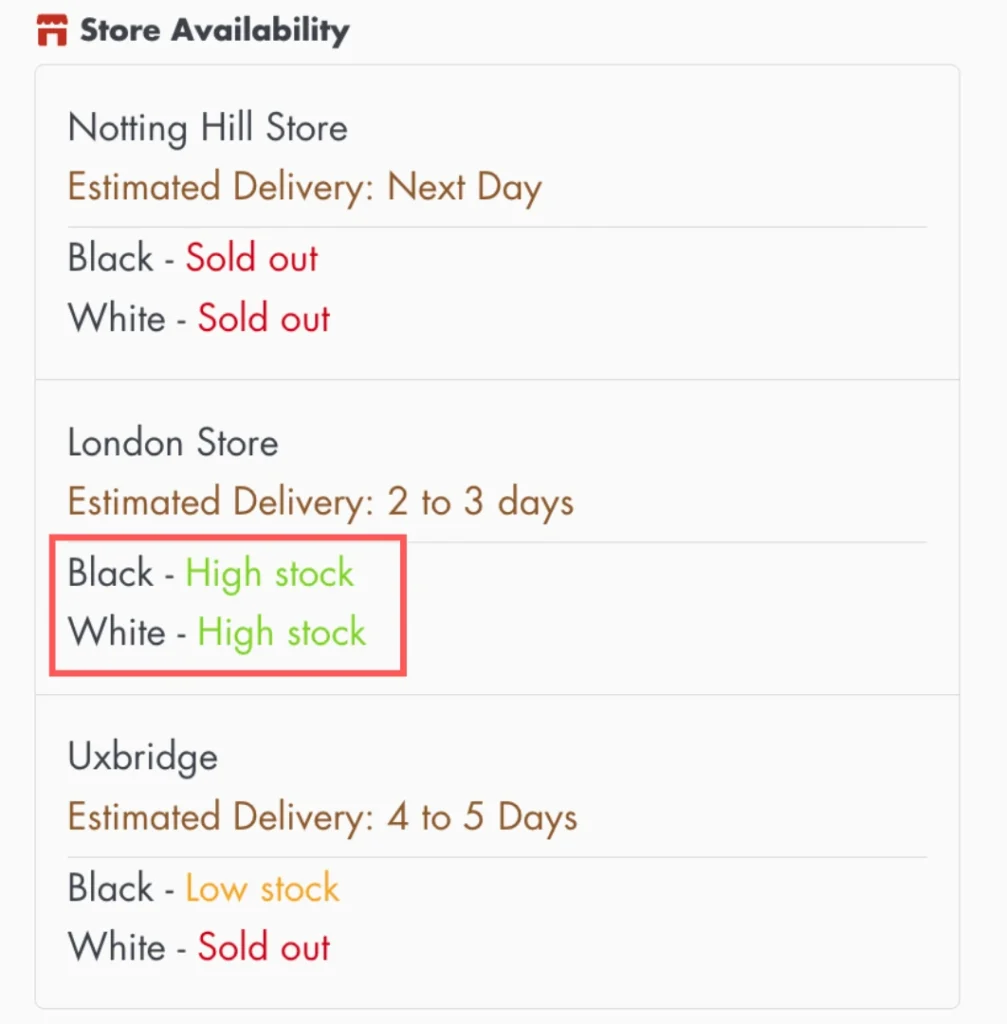
Inventory Threshold Message
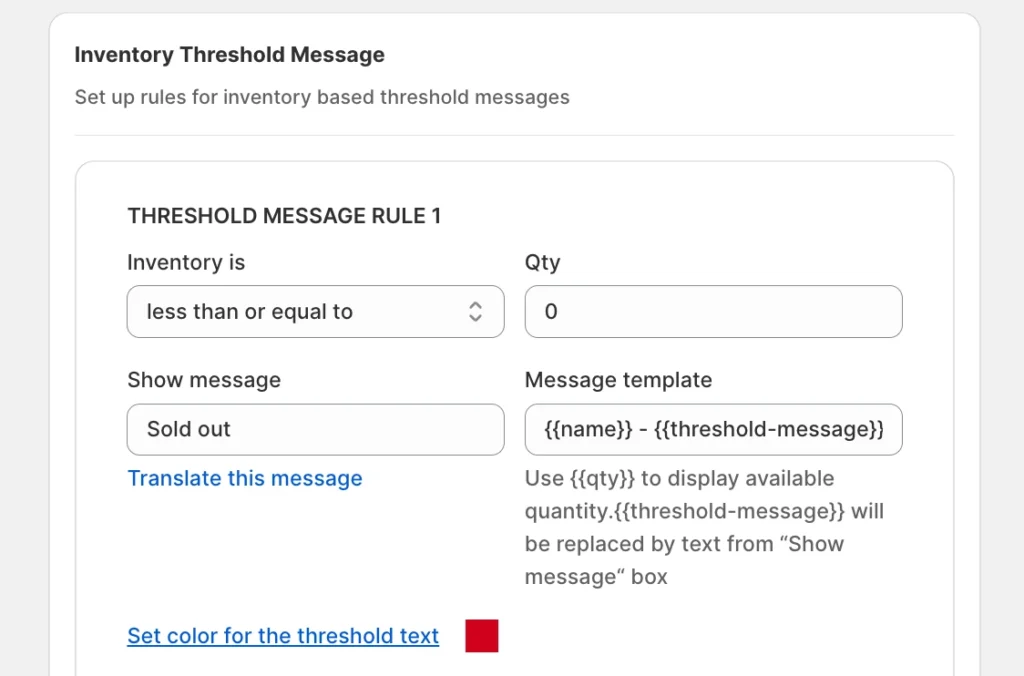
When configuring the Inventory Threshold Message, you have the flexibility to:
- Set quantity (QTY): Define the threshold quantity.
- Show message: Type in the message you want to display.
- Translate this message: Customize the message translation to different languages.
- Edit Message template: Personalize the message by setting a name and quantity.
- Set the color for the threshold text: Choose the desired color for the threshold text.
Utilizing these options can effectively tailor the Inventory Threshold Message to suit your specific needs and preferences. You can also add additional thresholds as needed.
Additionally, note that setting the {{location-name}} – {{threshold-message}} / {{name}} – {{threshold-message}} from the app will apply to all inventory widgets.
Resolving Invalid Rule Errors
When you encounter an “Invalid Rule” error on the app, it means the product’s stock couldn’t match any of the configured threshold rules. Please follow this link to resolve it.
If you encounter any issues, don’t hesitate to contact the support team for further assistance.