
Geolocation Search
Note: This feature is available exclusively on the Pro Plan with a limit of 50 locations.
When enabled, the app’s Geolocation Search feature allows shoppers to effortlessly locate available stock at nearby stores by simply entering an address. This significantly reduces the time and effort required to find products in physical stores, enhancing the overall shopping experience and potentially boosting sales.
New Feature: The Geolocation Search now provides automatic location searching for logged-in customers. This means the app automatically finds the nearest locations when they have a valid address. Note that your Google API key must have Geocoding API access enabled. Learn more about enabling required API & service here.
Enable Geolocation Search
In the app, navigate to Inventory Widget > Geolocation Search.
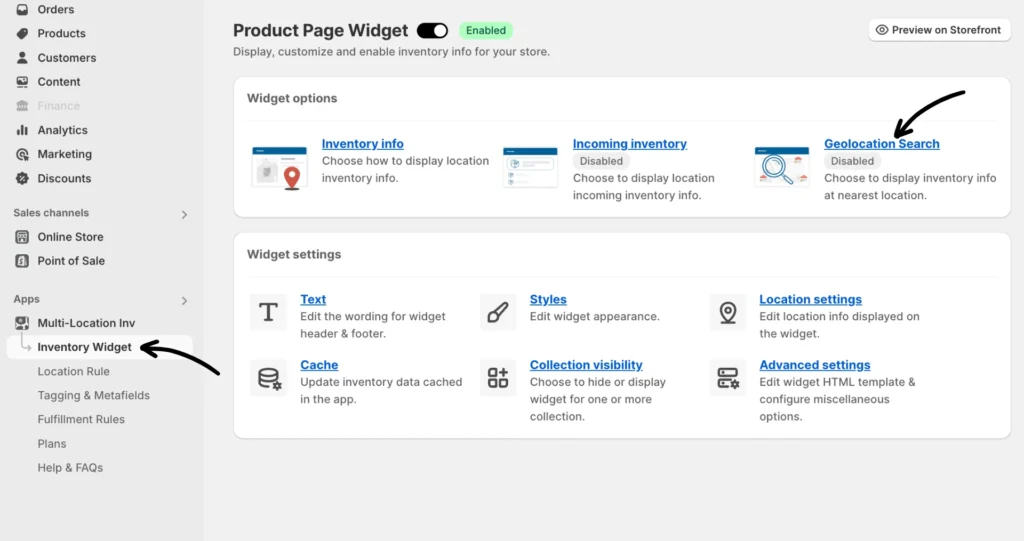
Click the Turn On button to enable this feature.
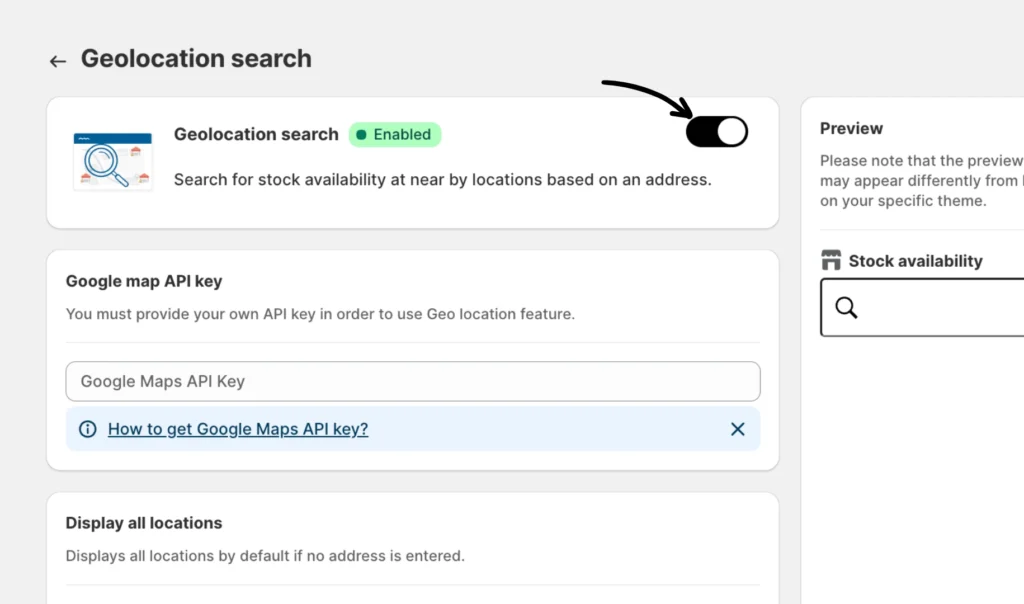
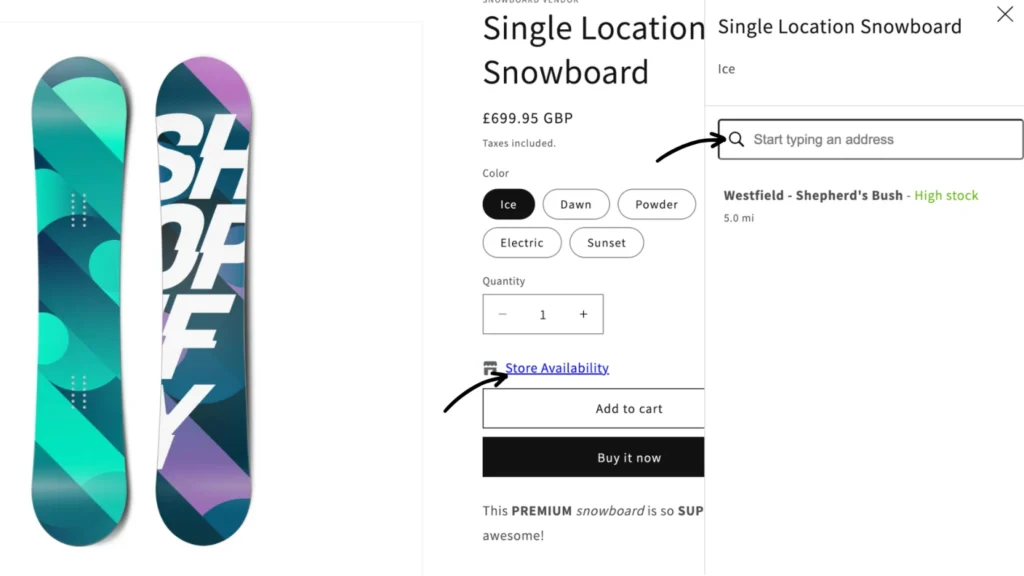
A search box is created on your product page, where customers can type and search for products in certain store locations. Here’s what it looks like:
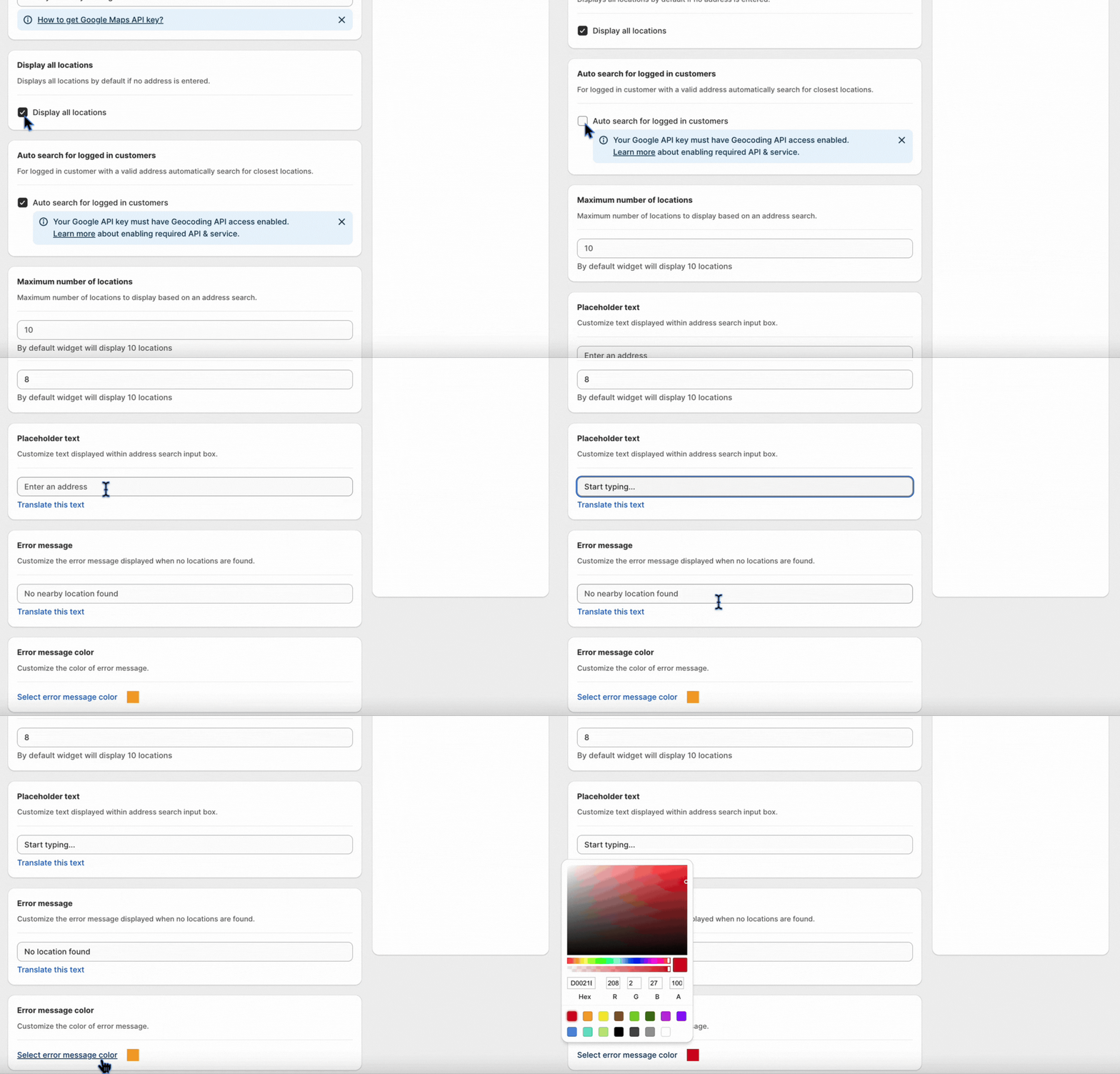
Configure the search box
First, you must provide your own Google Maps API key to use the Geolocation search feature. Please visit the Create Google Maps API key article for instructions on creating a Google Maps API key.
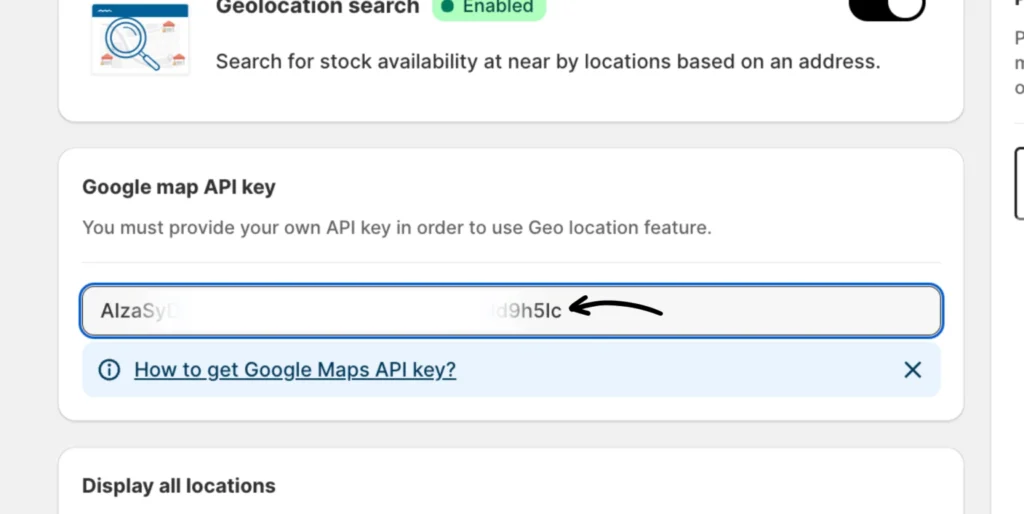
Then, configure the rest of the settings according to your preference.
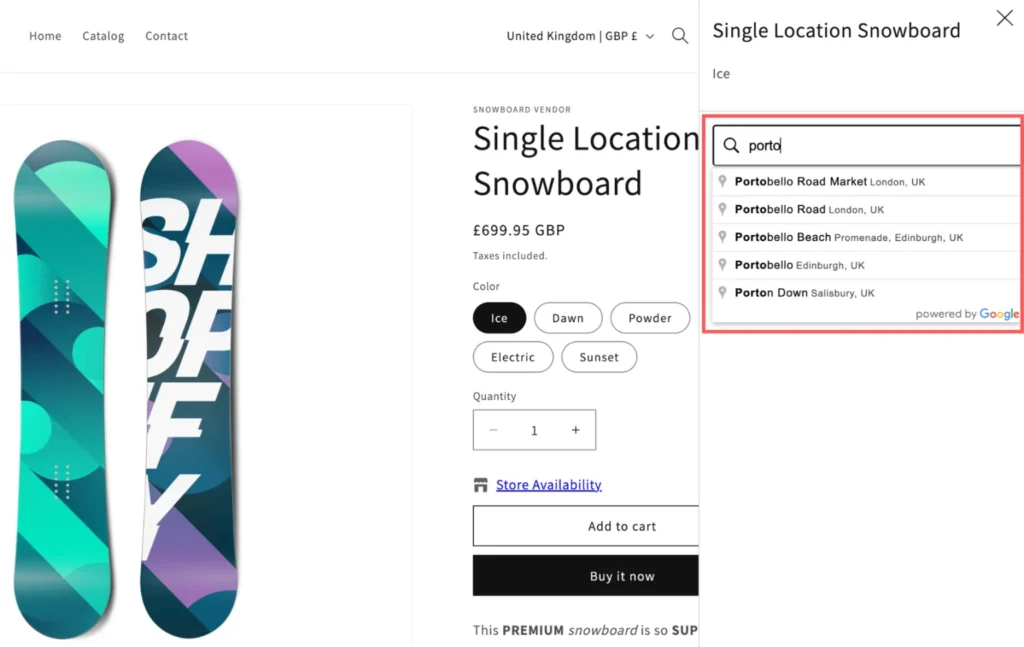
Enter an address to start searching
Start typing an address to see suggested locations based on your keywords. It will appear on the storefront as shown below:
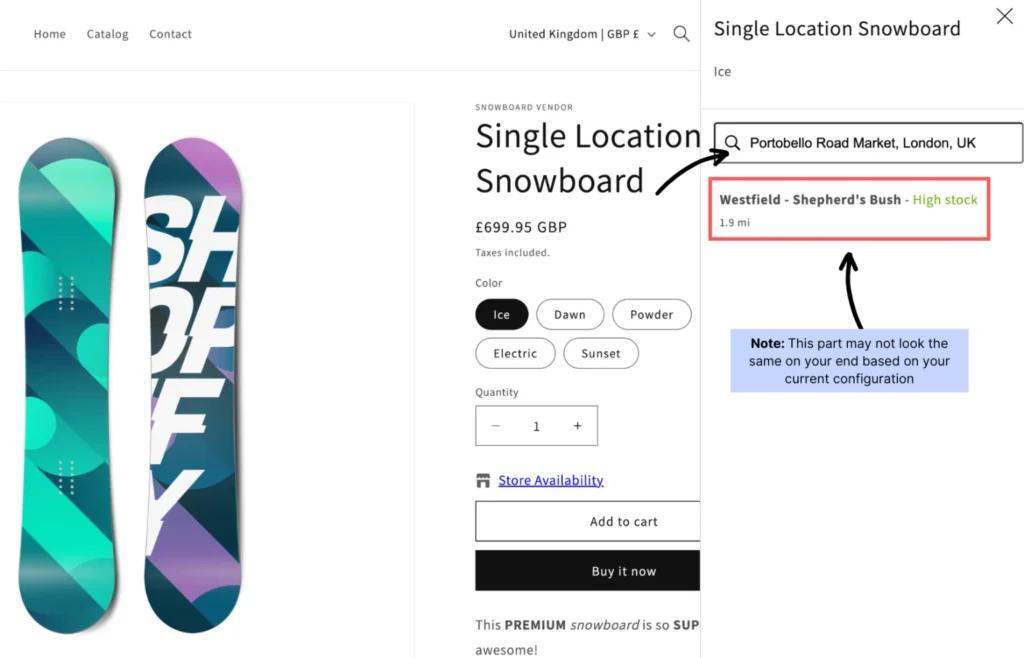
Once you’ve selected your desired address, the store carrying the product will be displayed, including the number of items in stock, the exact location, and the distance to the store.
Note: The address search is restricted to a single country based on the Shopify site’s market. For instance, a Shop based in the USA will only be limited to US addresses.