Display online availability
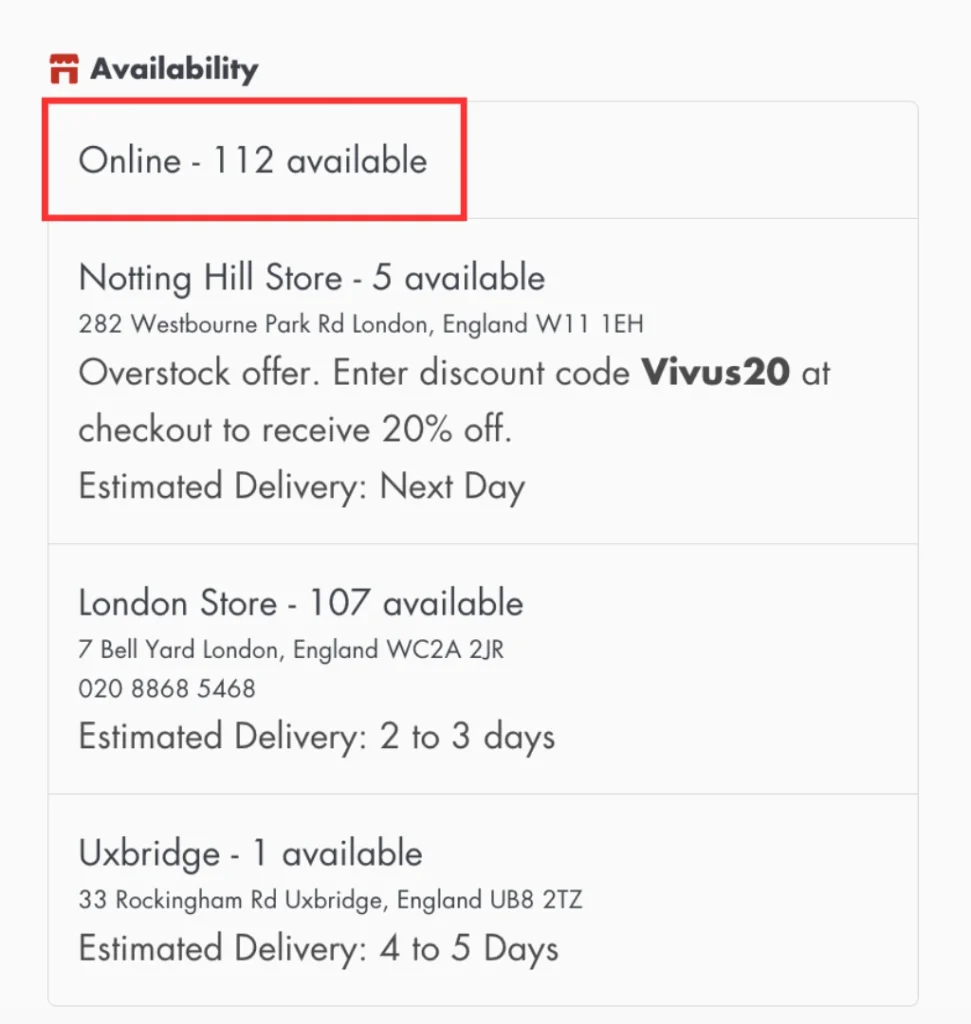
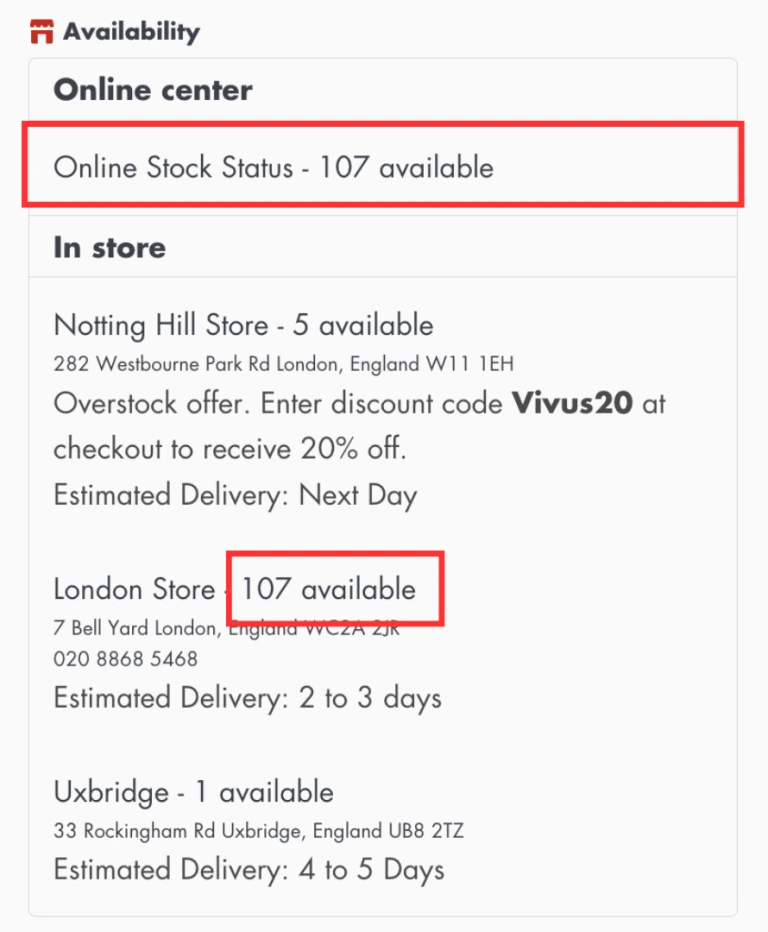
The Online Availability location (a.k.a. pseudo “online” location) combines inventory from all locations that fulfill online orders. Any text template or threshold-based message rules will also apply to the “Online” location.
Note that the “Online” location is compatible only with the “showing a single variant or a product locations inventory” widget template.
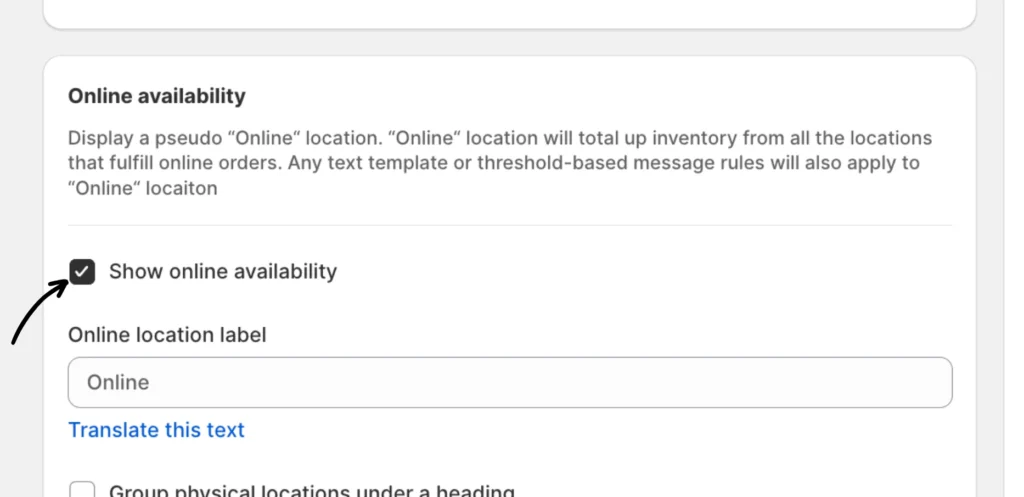
Enable the “Show online availability” option
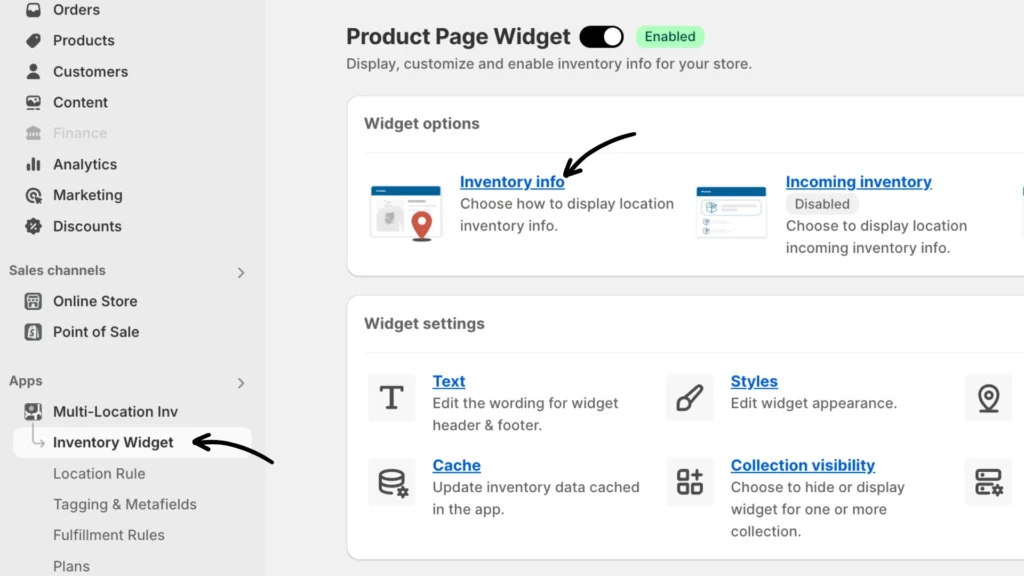
Navigate to Inventory Widget > Inventory Info.
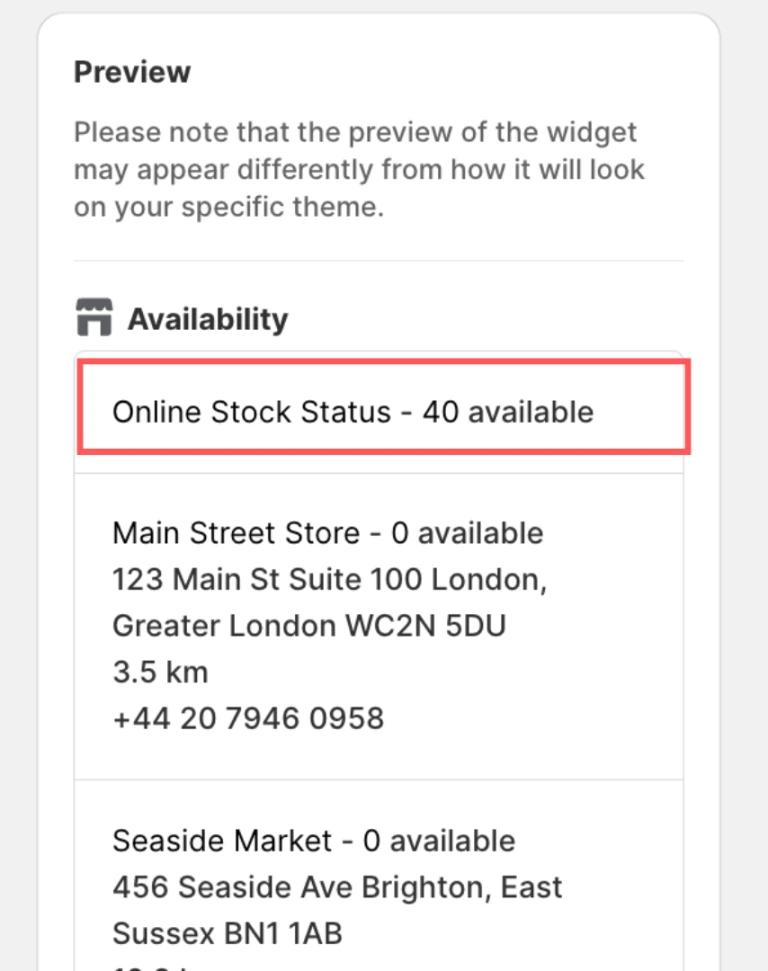
Scroll to the Online Availability option. Check the Show online availability box to enable it.
Storefront preview:
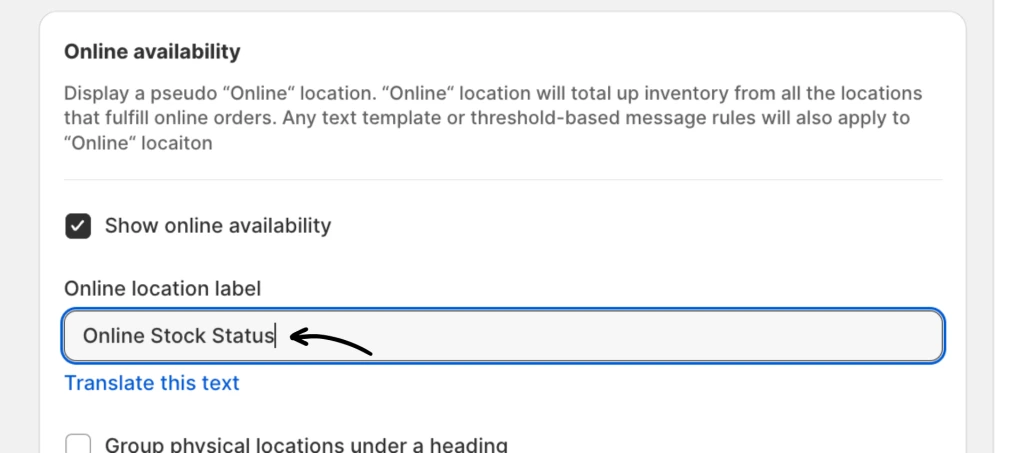
Modify or set an Online location label
Type your desired label in the box under “Online location label.”
Storefront preview:
Use headers to group physical and online locations
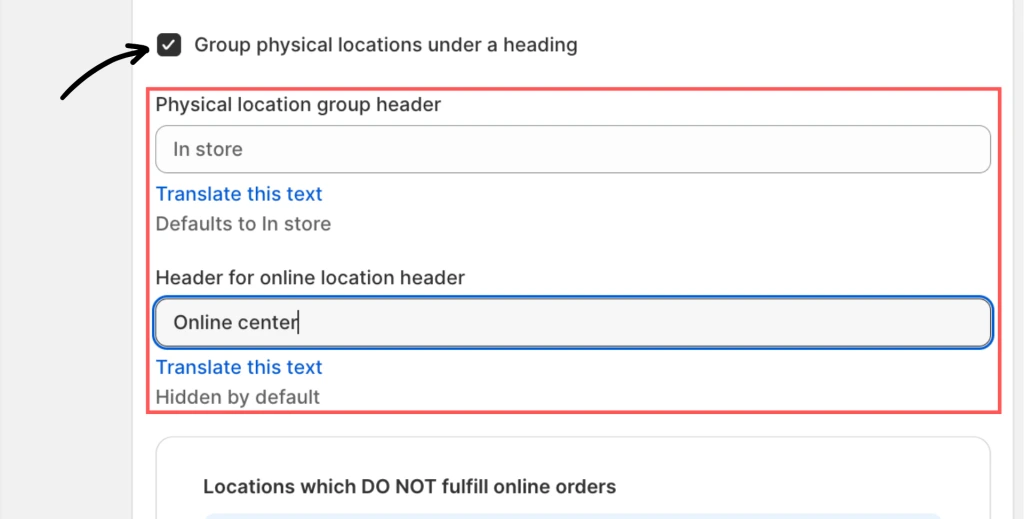
When enabled, you can add headers to physical and online locations to help customers distinguish between them.
You can set two different headers for the physical locations group:
- Physical location group header (defaults to “In store”)
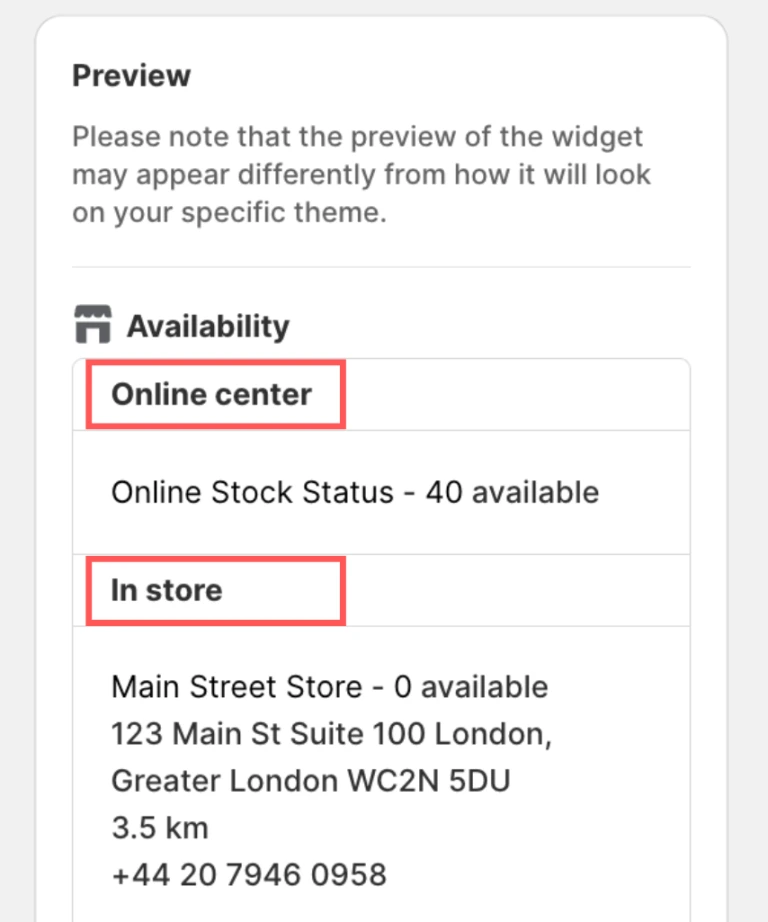
- Header for online location header (Hidden by default)
Storefront preview:
Set locations that DO NOT fulfill online orders
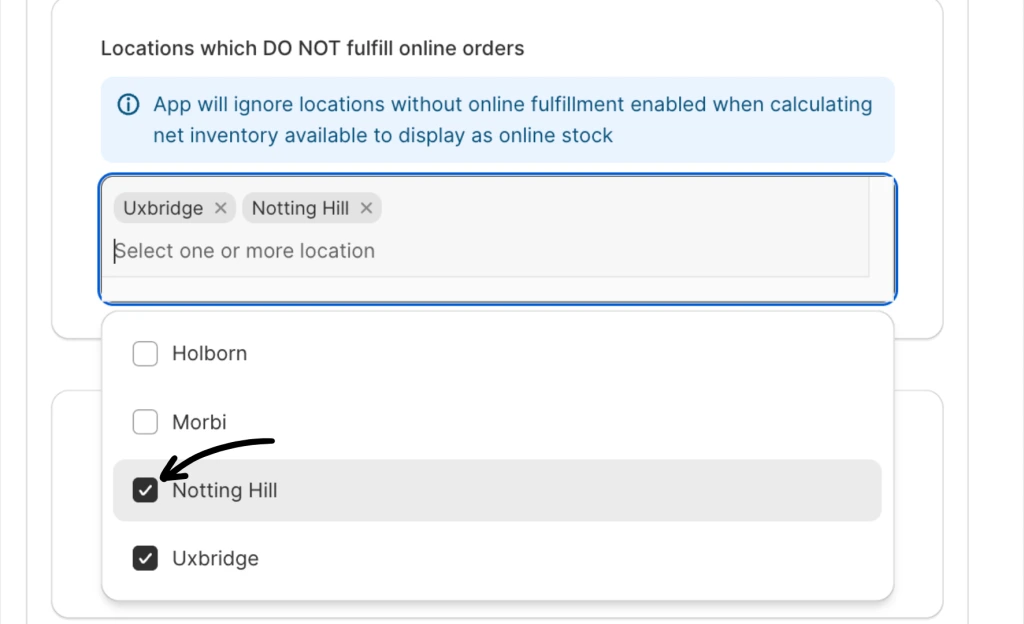
The locations selected here will not have their inventory counted online; the app will ignore these locations when calculating the net inventory available to display as online stock.
In the drop-down menu, click the box before the location name to select it. You can select one or more locations.
Storefront preview:
Display online availability for untracked products
Use this option to display an availability message for products whose inventory levels have not been monitored or tracked. This helps inform customers regarding the status of these items without providing specific stock details.
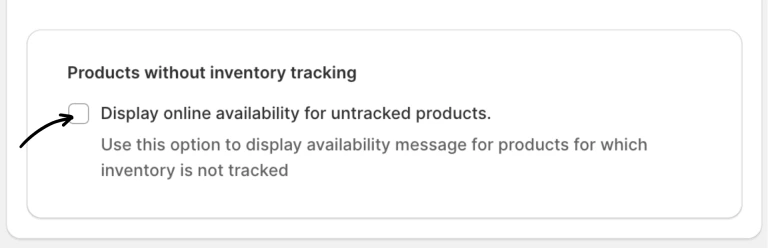
Check the “Display online availability for untracked products” box under the “Products without inventory tracking” setting`.
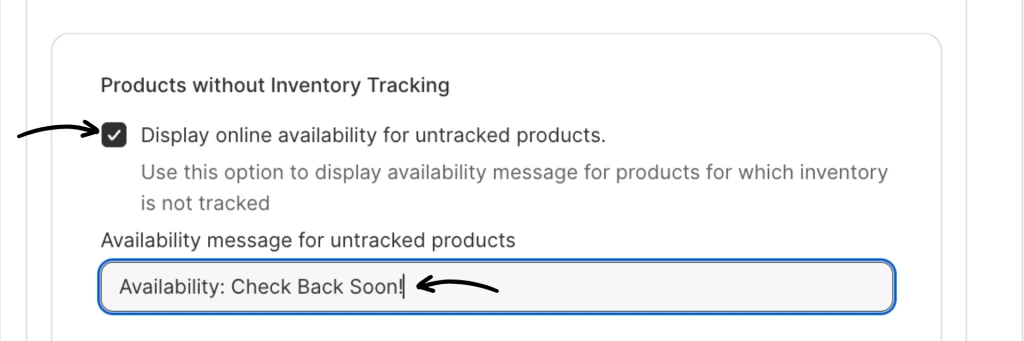
Availability message for untracked products
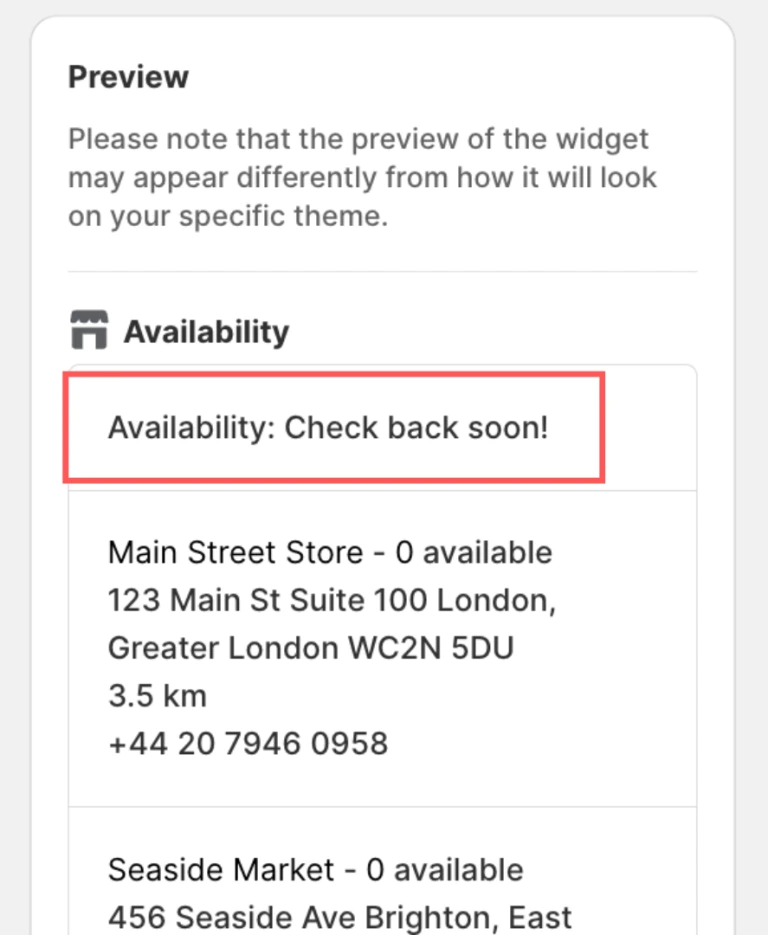
Use this to display a custom availability message for products whose inventory is not tracked. You can set an appropriate message, such as “Available,” “In Stock,” or “Please get in touch with us for availability.”
Storefront preview:
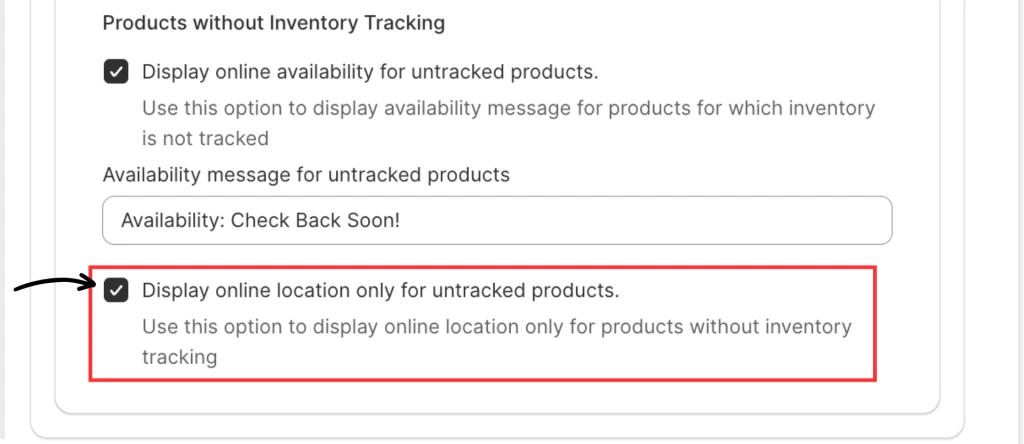
Display online location only for untracked products
Use this option to display the online location information exclusively for products that DO NOT have their inventory levels tracked. This allows customers to see where these items can be found online without providing specific stock details.
If you have questions or need help, please contact our support team.