Enable the app’s inventory widget on product pages
This guide walks you through the steps to enable the inventory widget on the product pages.
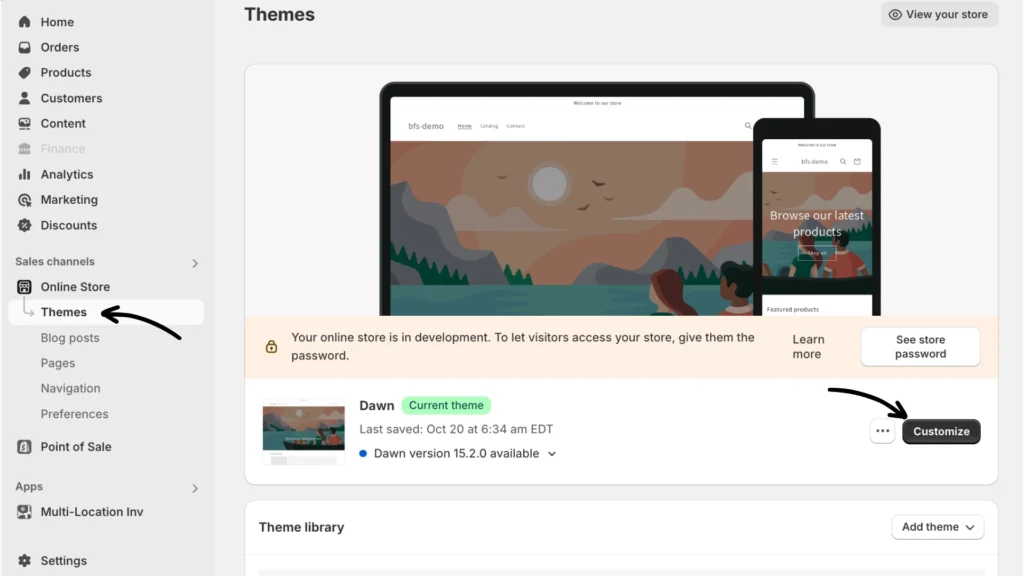
Step 1: From the left-hand navigation under Sales channels, navigate to Online Store > Themes. Click the Customize button next to the currently selected theme.
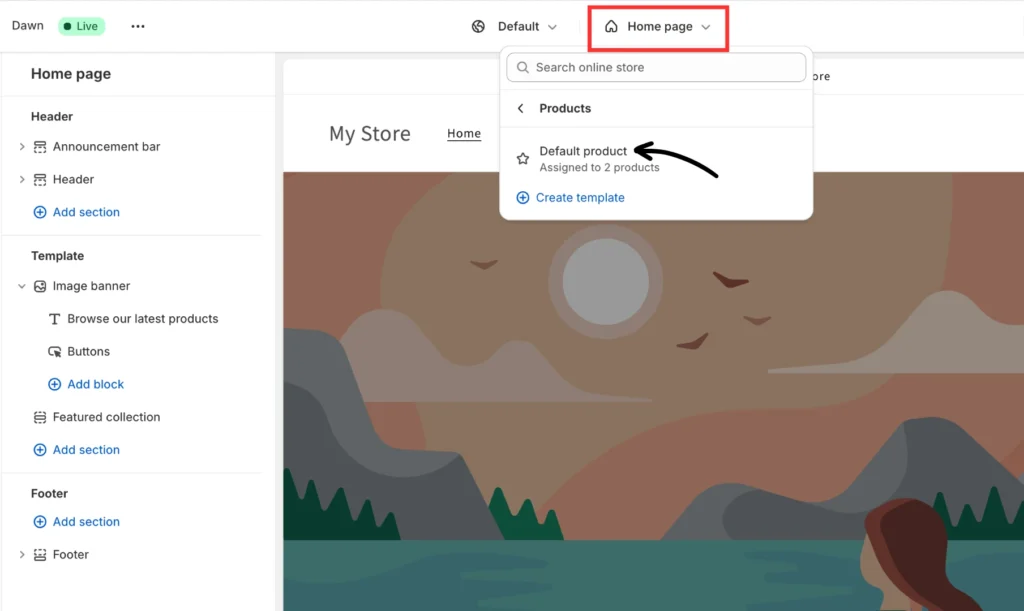
Step 2: Click on the “Home page” drop-down menu at the top of the page, then select Products > Default product.
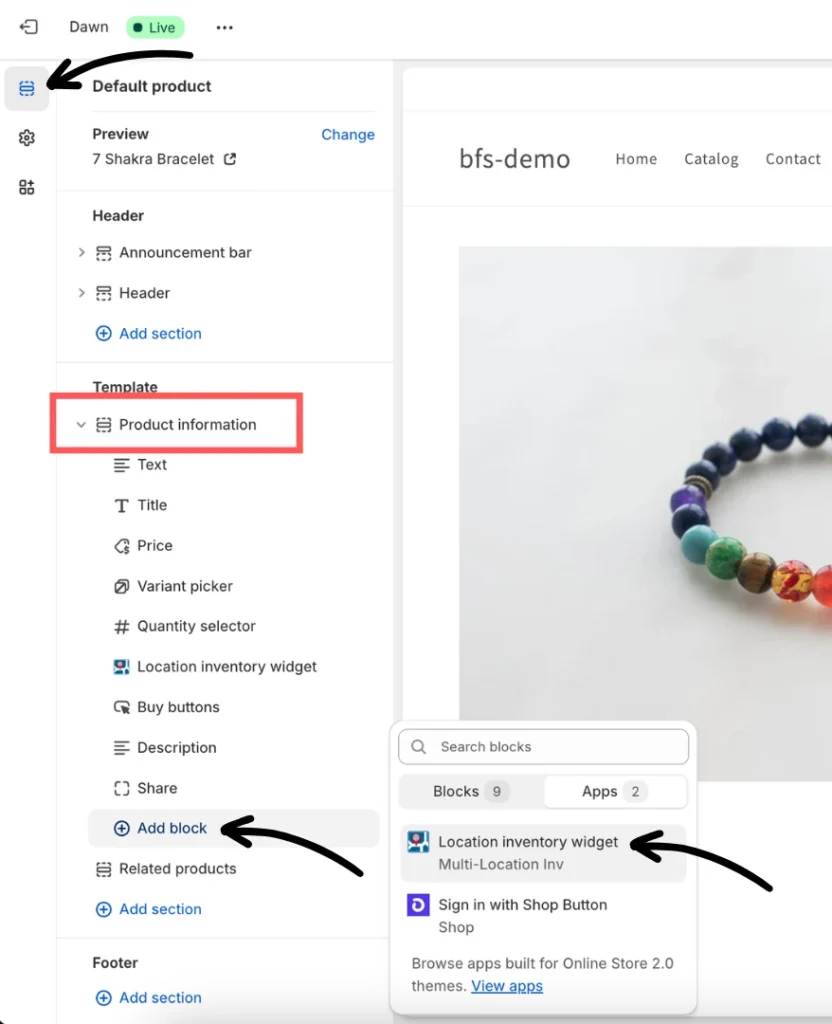
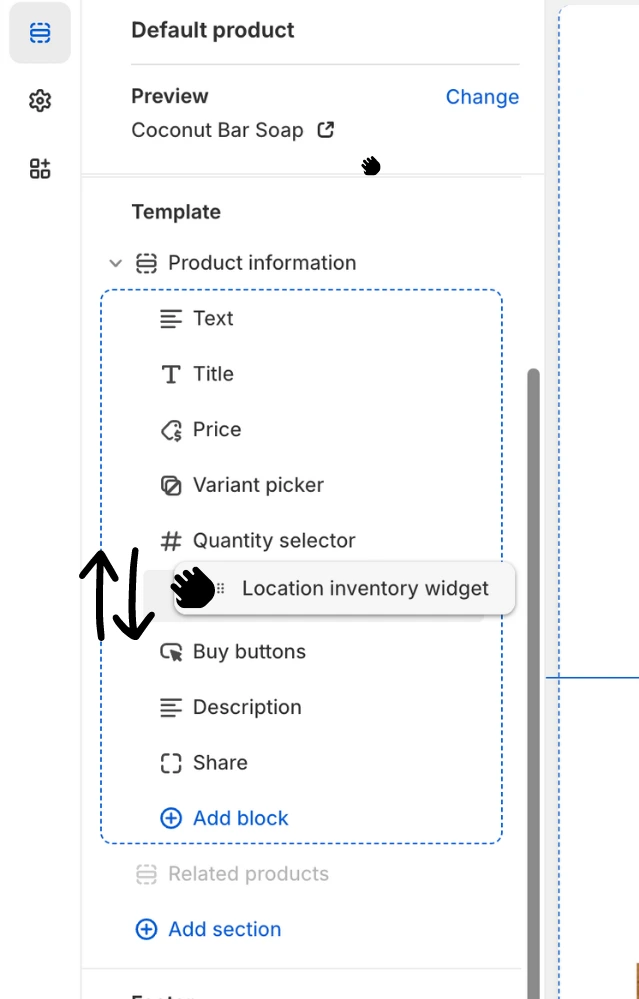
Step 3: On the left-hand menu, select Sections and look for “Product information.” Then, click Add block > Apps and select the Location inventory widget.
This will insert the widget at the bottom of the page as shown in the second screenshot below:
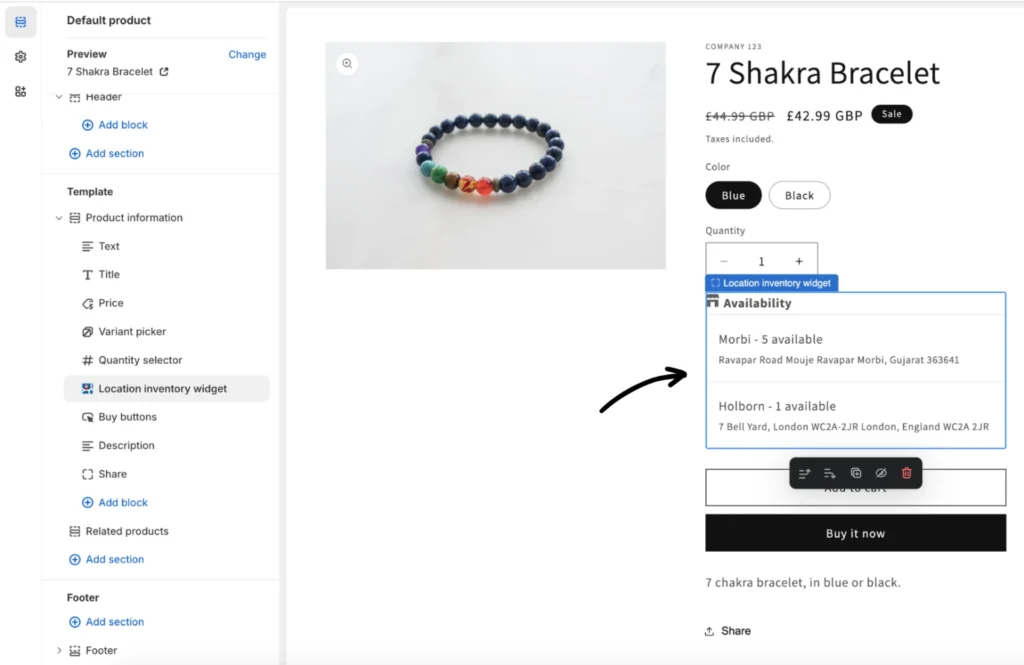
Step 4: You can place the widget anywhere within your product information page by dragging the handle. It is best to put the widget above the “Buy buttons”.
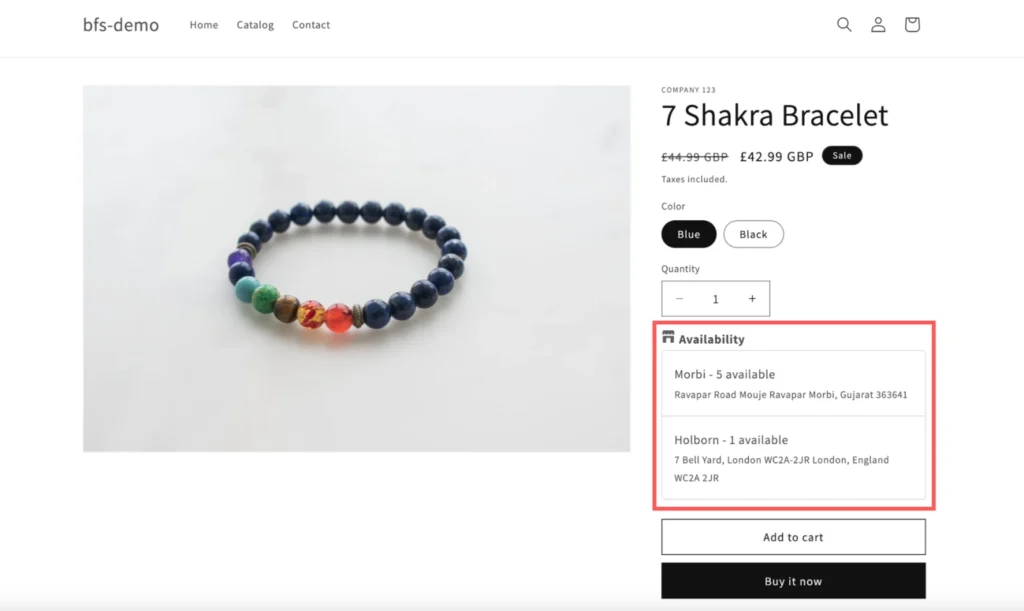
Below is the screenshot of your widget’s appearance in the front end.