
Set Location Priority
Use the Location Priority setting in the Multi-location Inventory Info app to control the priority order in which locations show stock availability. This helps ensure that inventory from your preferred locations appears first in the widget.
Note: Only one of the two settings (Location Priority or Primary Location) can be active at a time.
How it works
When Location Priority is enabled, the app checks inventory based on the priority order you set. The widget displays stock from the first available location in the list.
Example
If your priority order is:
(1st) Location B
(2nd) Location A
(3rd) Location C
The widget will show inventory from Location B first. If it’s out of stock, it will check Location A, then Location C.
How to enable Location Priority
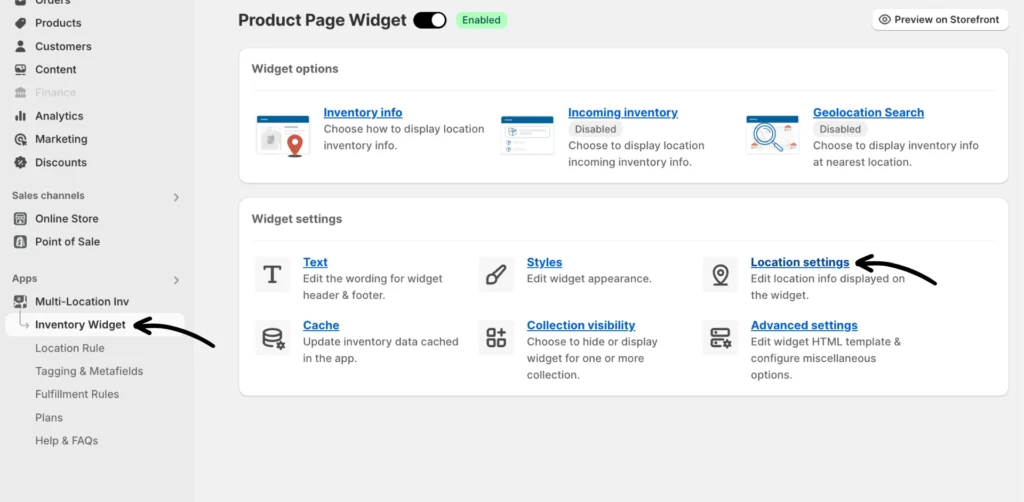
Step 1: From your Multi-location Inventory Info app, navigate to Inventory Widget > Location Settings (under Widget Settings).
Step 2: Scroll down to the “Location Priority” and check the Set location priority box.
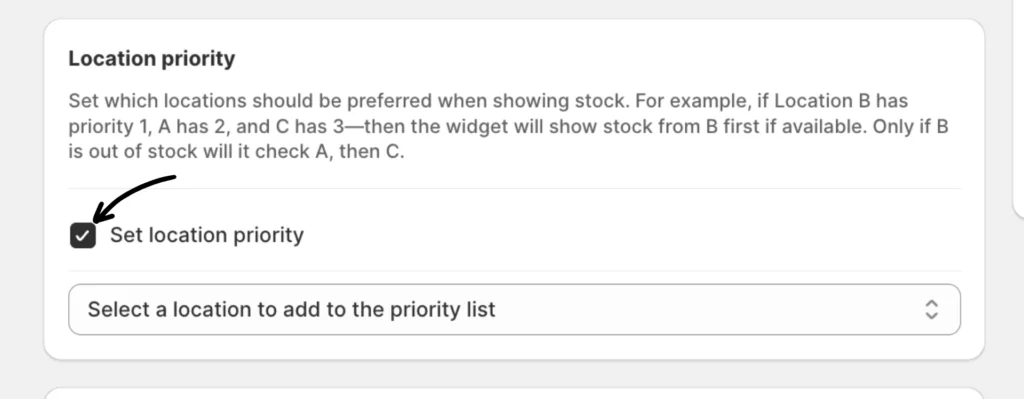
Note: This action disables the Primary Location feature.
Step 3: Use the dropdown to select and add locations to the priority list.
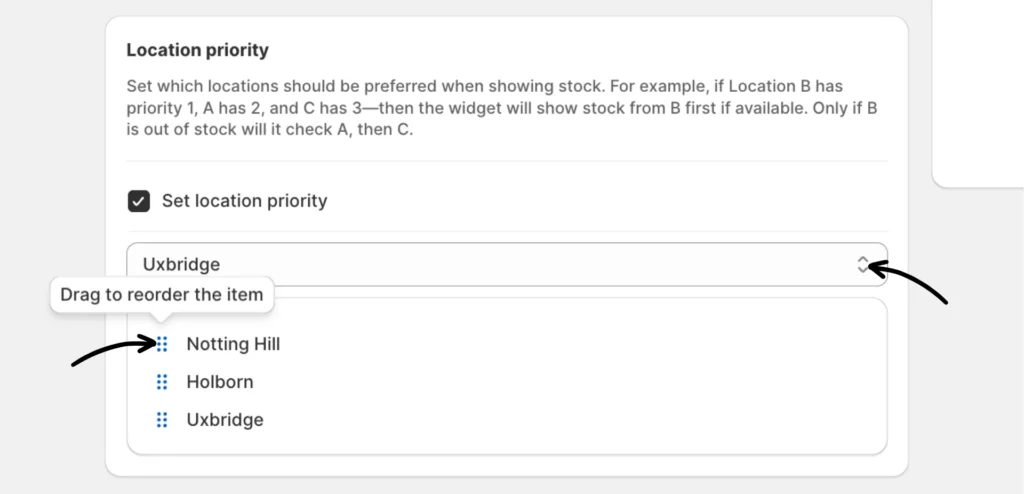
Drag and reorder the list as needed. The top location is given the highest priority.