
Display Incoming Inventory Info
You can display incoming inventory when your product is low or out of stock through the Multi-Location Inventory Info app widget. This is important for managing customer expectations and helps retain sales by informing customers when out-of-stock items will be available again.
Set the Incoming Inventory Info on the product page
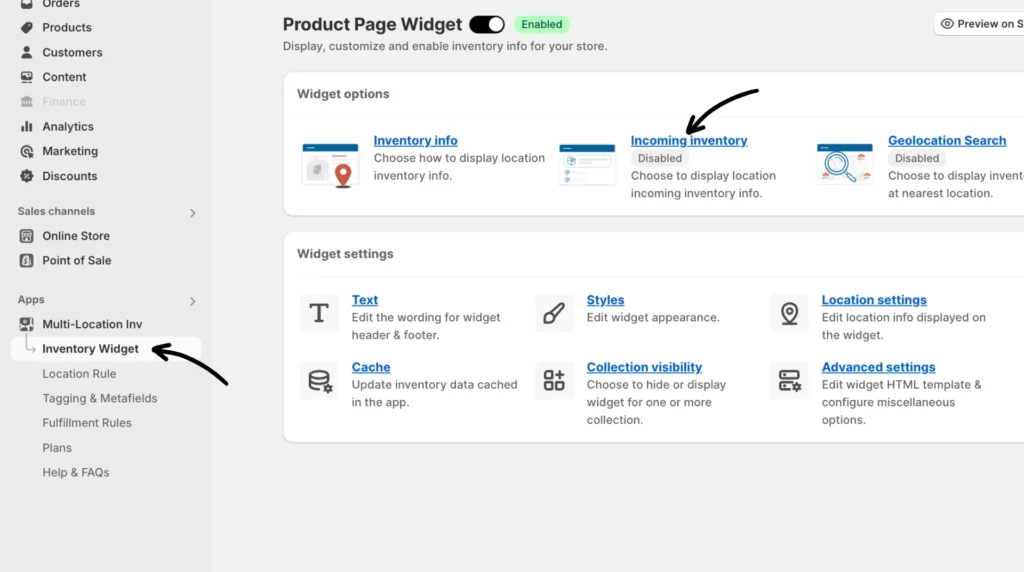
In your Multi-Location Inventory Info app, click Inventory Widget > Incoming Inventory.
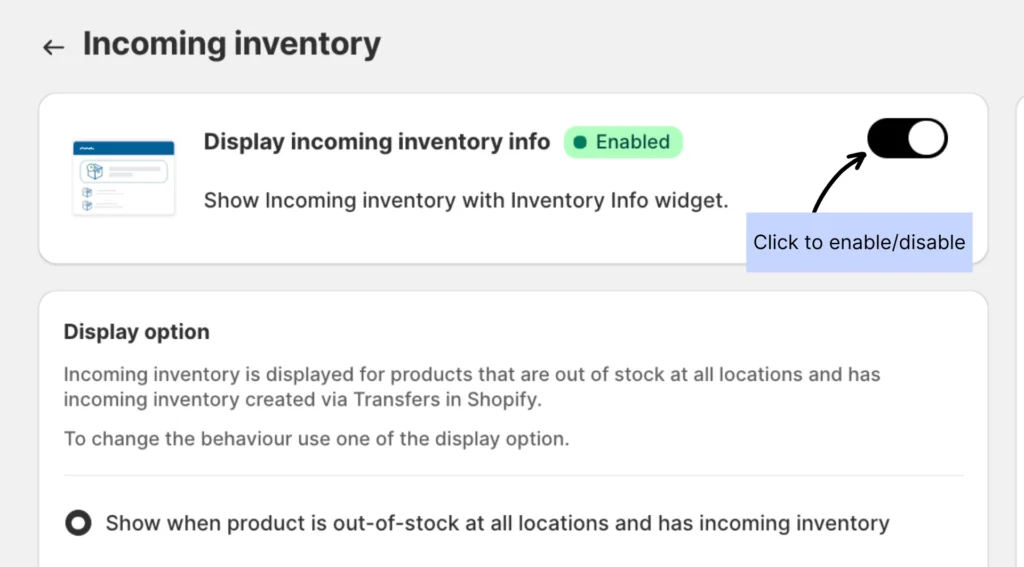
Ensure the “Display incoming inventory info” feature is enabled.
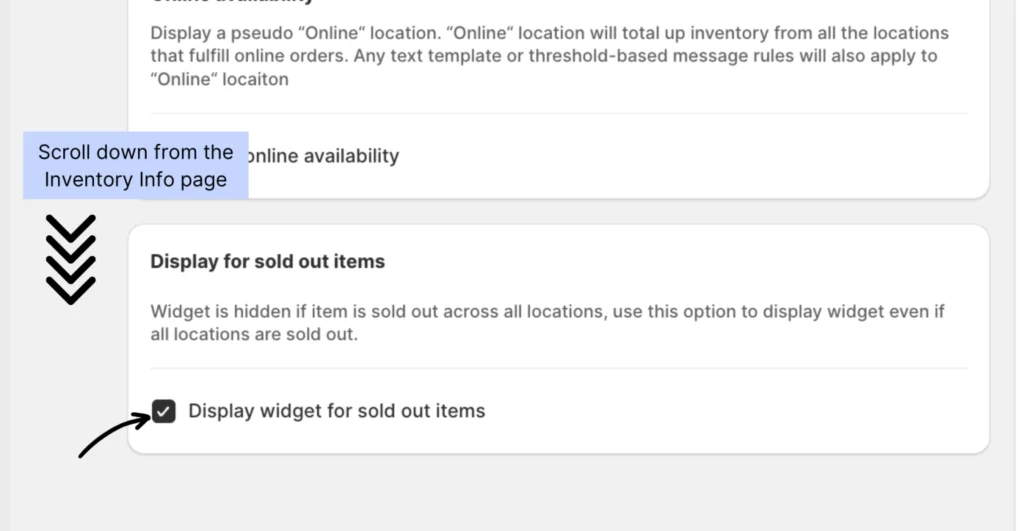
Display sold-out items
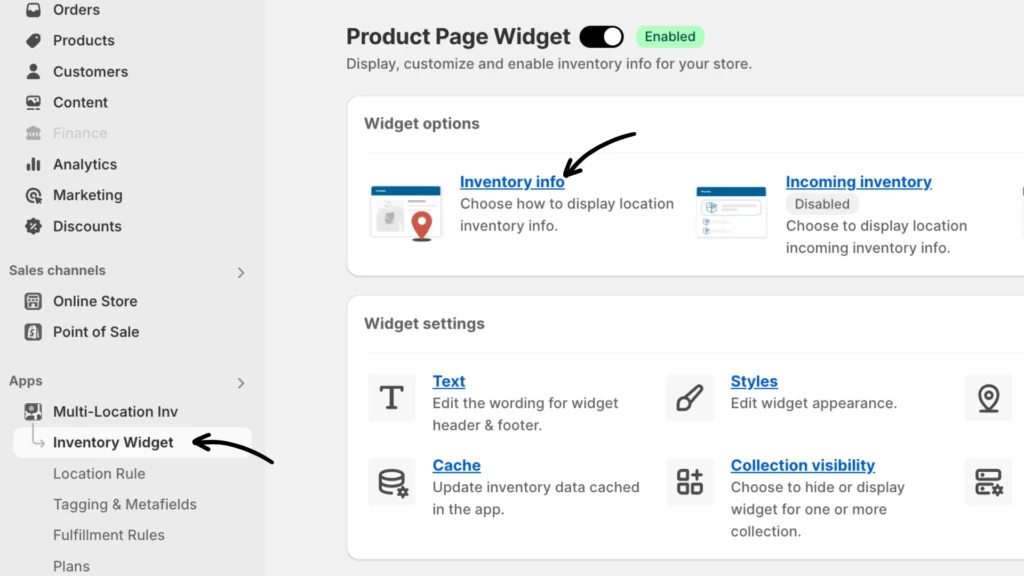
Make sure to also check the box for displaying the widget for sold-out items under Inventory Info (just beside Incoming Inventory).
Incoming inventory display options
Head back to the Incoming Inventory setting. To change the display behavior, use one of the display options below. Don’t forget to click Save after making any changes.
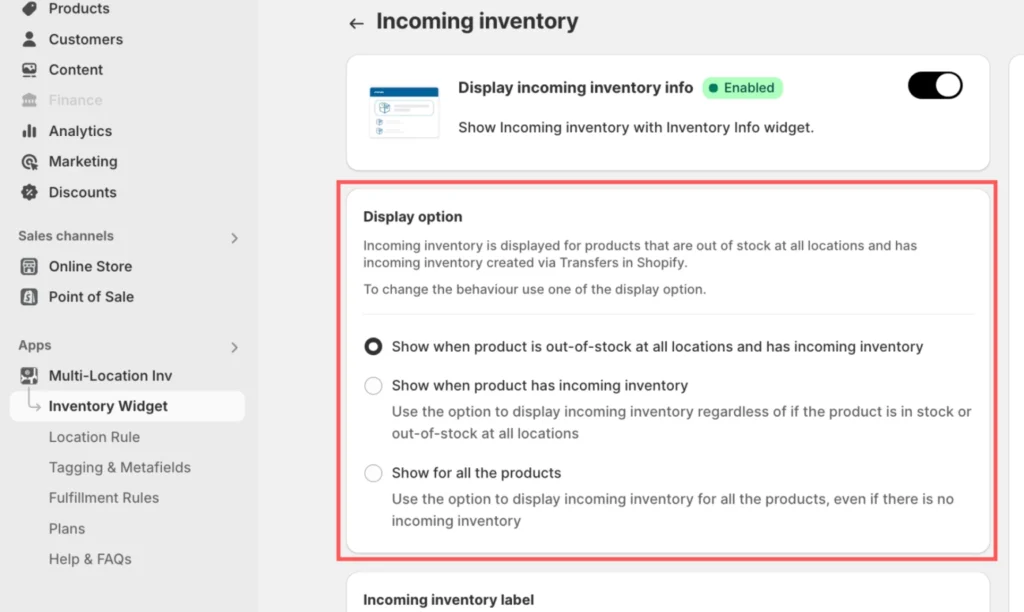
Option 1: Show when the product is out-of-stock at all locations and has incoming inventory
You can enable this option to display the quantity of incoming inventory when a product is out of stock across all locations.
Note: This feature won’t be displayed if there’s no incoming inventory while the product is out of stock. Ensure that your inventory has incoming stock to activate the incoming inventory option.
Additionally, The app displays the incoming inventory information from Products > Purchase Orders in Shopify.
- Create a Purchase Order
- Go to the purchase orders section.
- Click Create Purchase Order.
- Select the desired destination.
- Add products
- Scroll down to the “Add products” section and click Browse to select your product(s) from the list.
- Click Add and set the quantity of your order for each product.
- Save as draft and mark as “Ordered”
- Click Save as draft. A Purchase Order number will be assigned.
- From the options at the top, select Mark as Ordered.
More information about how to create a purchase order can be found here.
Option 2: Show when a product has incoming inventory
Use the option to display incoming inventory regardless of whether the product is in stock or out-of-stock at all locations.
Option 3: Show for all the products
Use this option to display incoming inventory for all the products, regardless of whether or not any inventory is available.
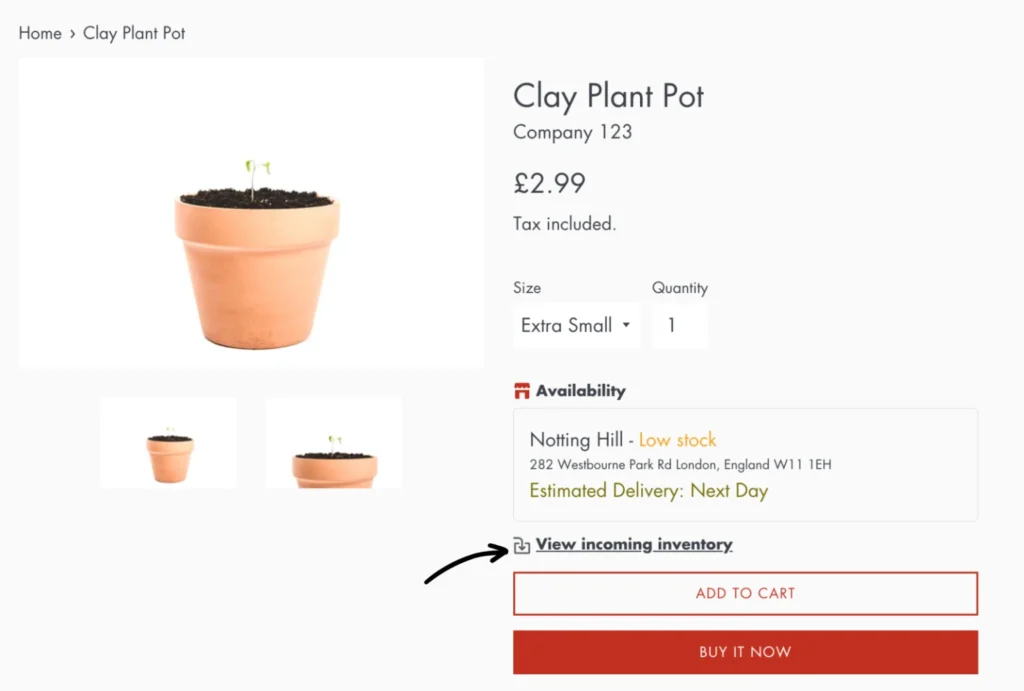
Storefront preview
The preview will appear as follows on the storefront:
If you need help, please feel free to reach out to our support team.