
Product Page Inventory Widget:
Complete setup guide
This article provides complete instructions for setting up your product page inventory app widget.
Step 1: Activate the app embed
Follow this link to the article for instructions: Activate the app embed
Step 2: Ensure the Product Page Inventory Widget Status is turned on
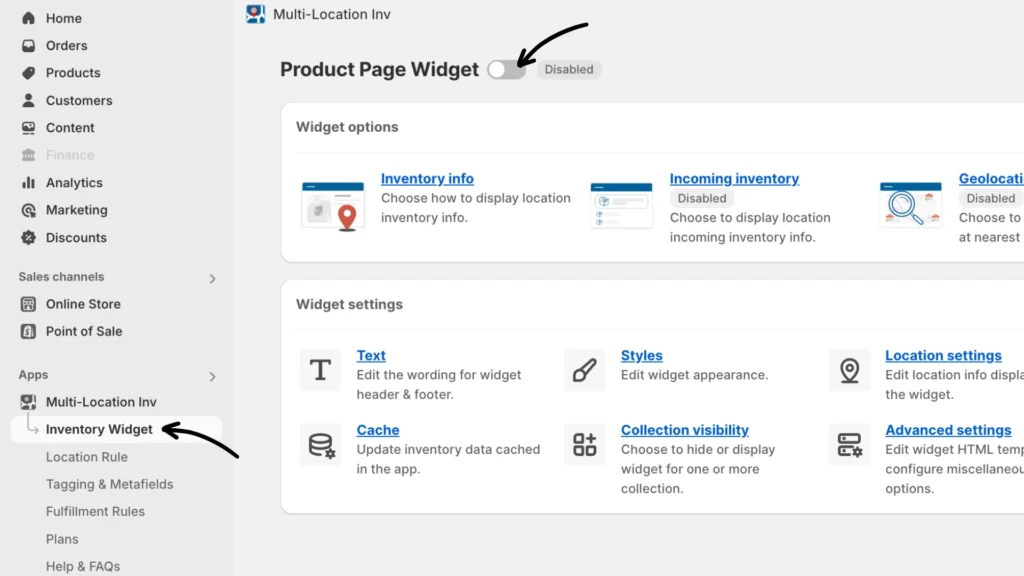
After enabling the app embed, ensure the Product Page Widget Status is turned on. If not enabled, the widget won’t display on the product page.
Note: The app will attempt to place the default widget above the “Add to Cart” button. If it cannot find the button, it will use the app block on the product page. The theme will use advanced placement if it does not support app blocks.
For more details, please refer to this article: The app widget is not displaying
Step 3: Enable the app’s inventory widget on product pages
Next, ensure the inventory widget is displayed on your product page. refer to this article for instructions: Enable the app’s inventory widget on product pages
Step 4: Decide the Inventory info is displayed
Choose from the available widget templates:
- Show a single variant’s or product’s location inventory
- Show all variants available at a location
For setup instructions and more details, please follow this link: Inventory widget templates
If you encounter any issues, don’t hesitate to contact the app’s support team for further assistance.