Add quantity to threshold messages
Using the Multi-Location Inventory App, you can display quantities and threshold messages for each inventory location in your storefront.
Note: This article assumes you already have the inventory-based threshold message set. If you have not already done so, please set the rule in the Inventory Display Template. Follow the article below for guidance:
Display inventory threshold message instead of quantity
After setting up the rules, you can now include the quantity in the threshold message. See the following section for instructions.
Set the rule in the Inventory Display Template
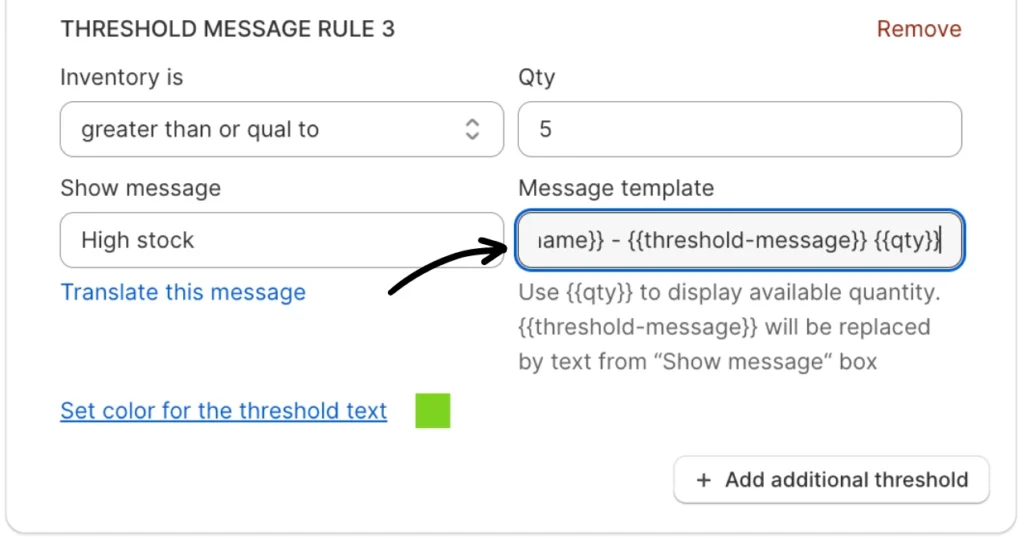
Navigate to the “Message template” field and include the {{qty}} token to display the quantity/number of available items dynamically.
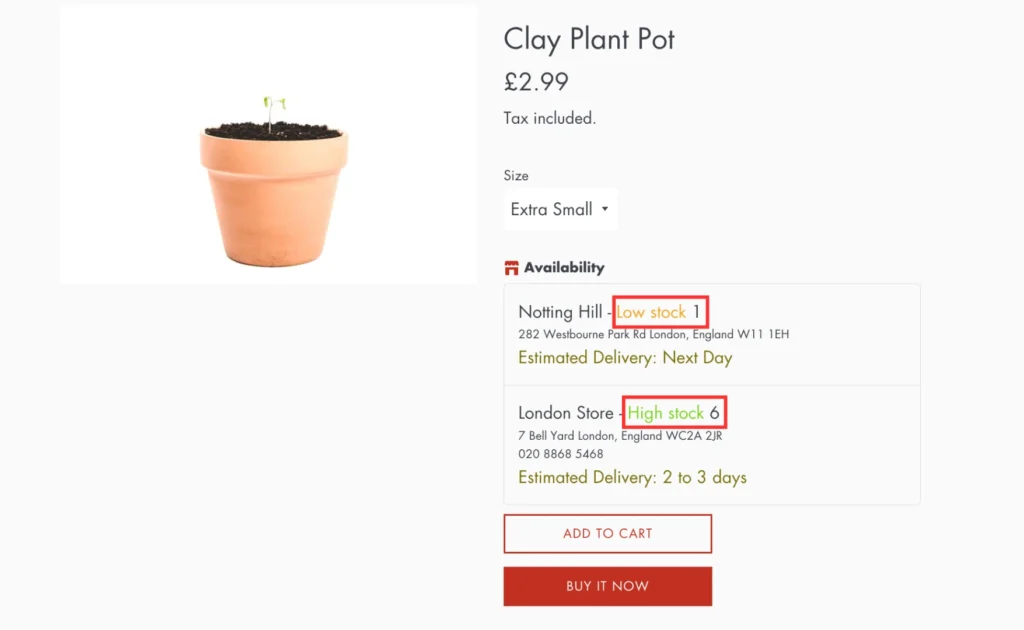
Storefront preview:
(Optional) Apply color coding using HTML and CSS
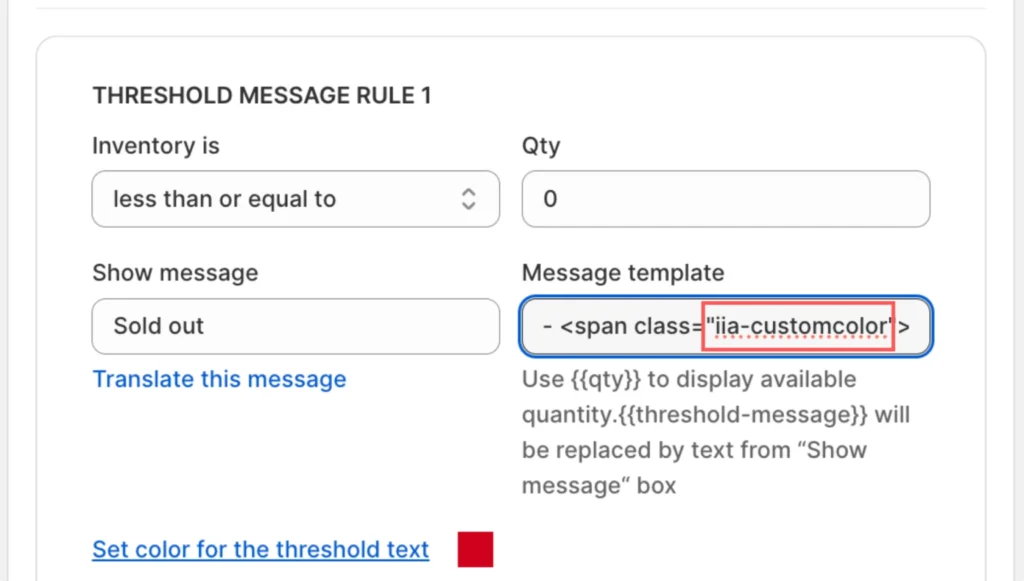
You can format the message template to apply color coding by adding the following (requires some understanding of HTML and CSS):
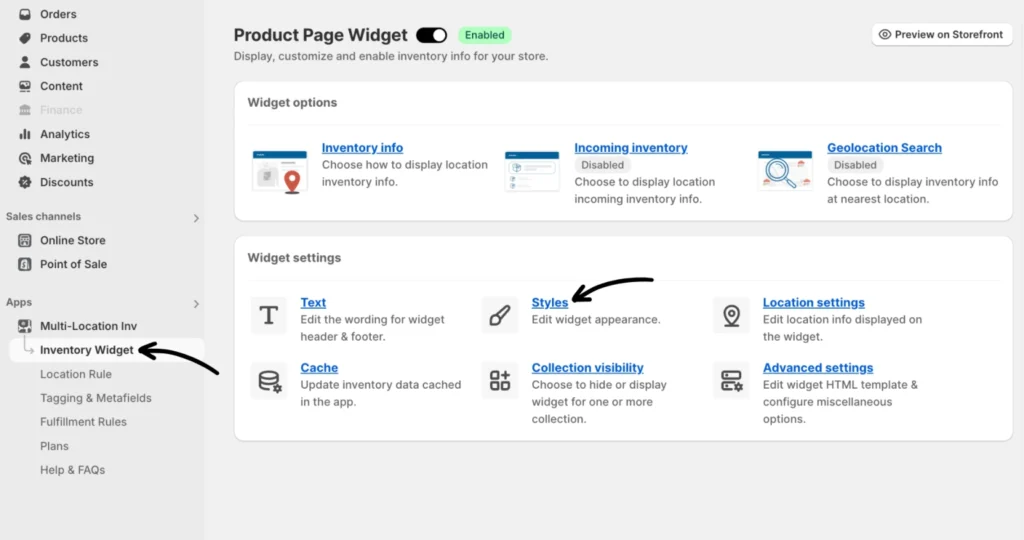
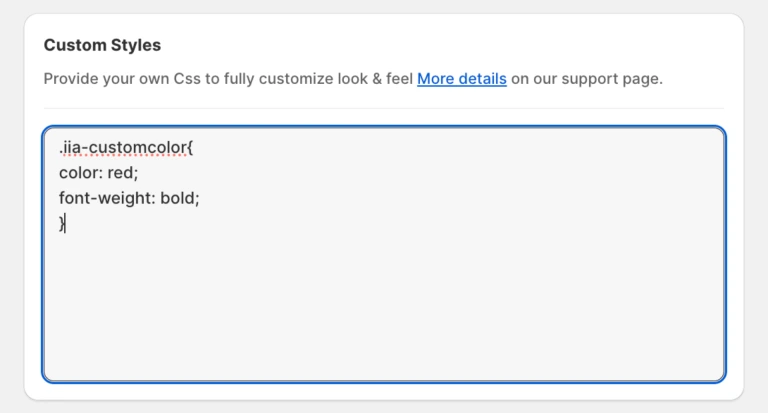
Important: You need to define the CSS class .iia-customcolor in your custom stylesheet to apply the desired color or style. The setting is accessible via the Custom Styles field from Inventory Widget > Styles.
Example #1: Set a single color for all threshold messages
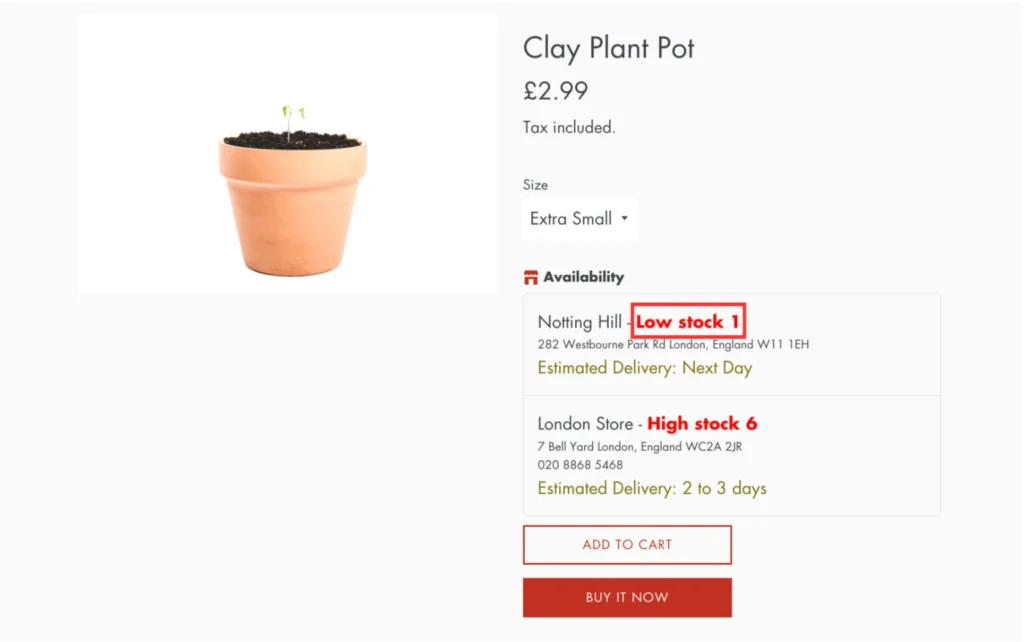
Storefront preview:
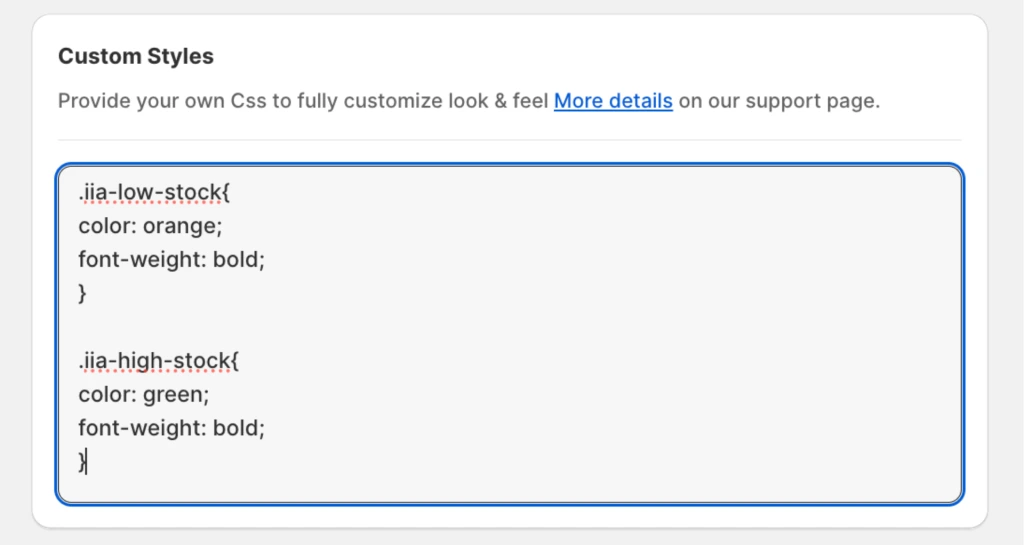
Example #2: Set different colors for different threshold messages
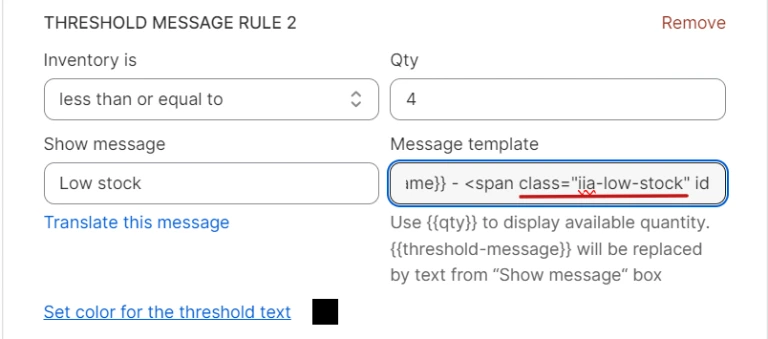
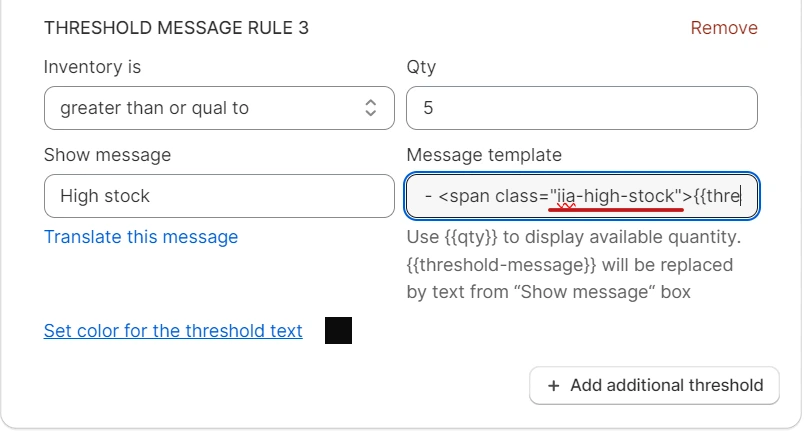
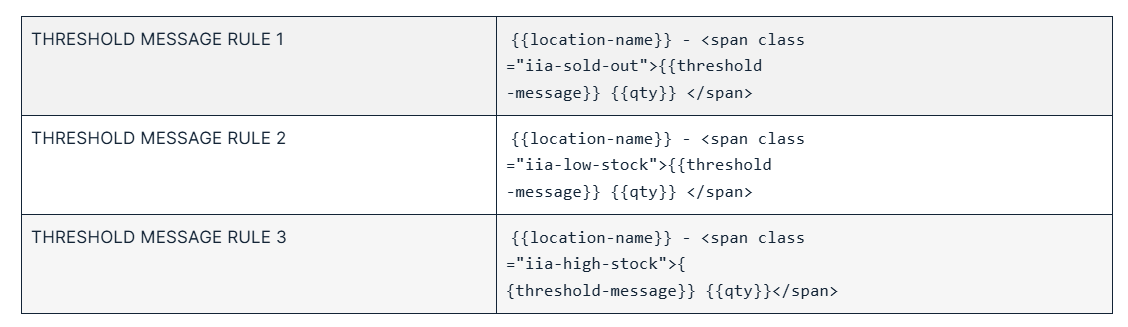
Styling each threshold message requires providing different classes for each message template. Here’s how:
You can apply specific styles to each threshold message by using different classes.
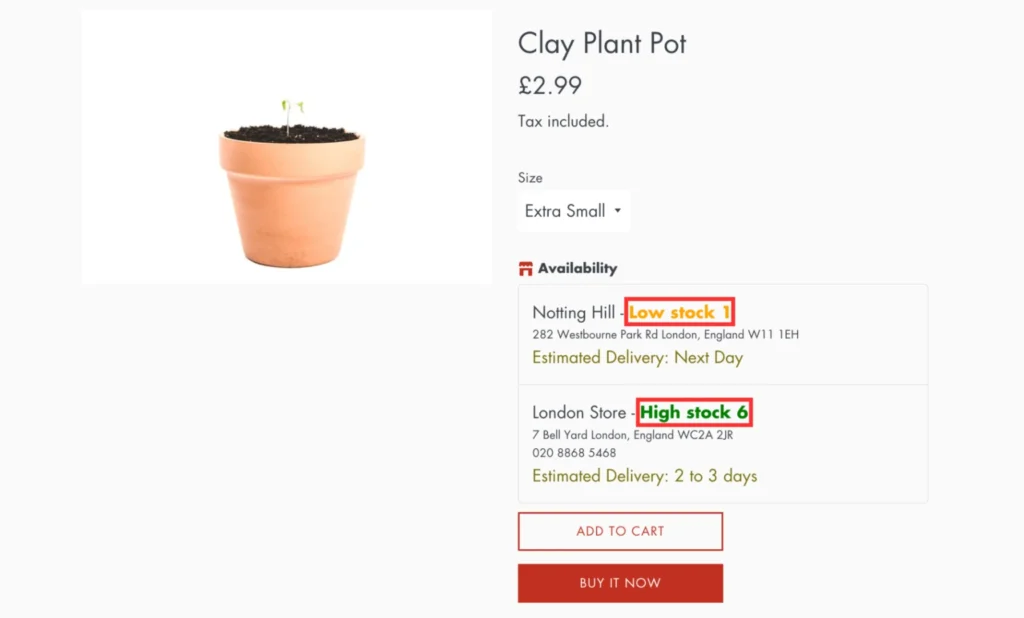
Storefront preview:
Feel free to adjust the CSS properties (color, font-weight, etc.) to match your design preferences.
If you encounter any issues, don’t hesitate to contact the support team for further assistance.