
The app widget is not displaying
If your app widget is not displaying on your product page, please follow this article to activate the app embed.
Is your inventory widget active?
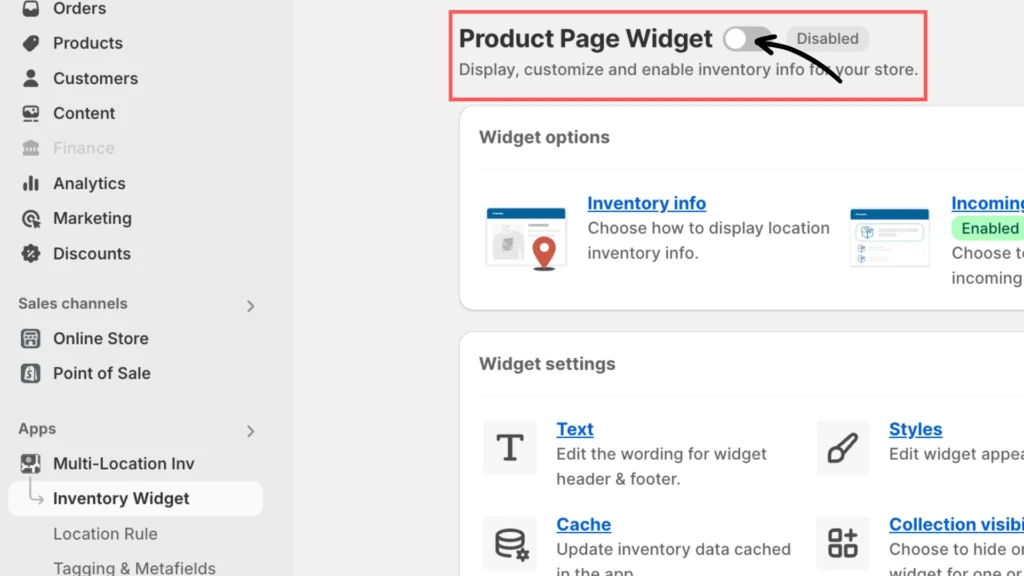
After enabling the app embed, check if the app embed status is active and ensure the Product Page Inventory Widget Status is “Enabled”. To get to that setting:
Click Apps from your Shopify admin page and search/select the widget.
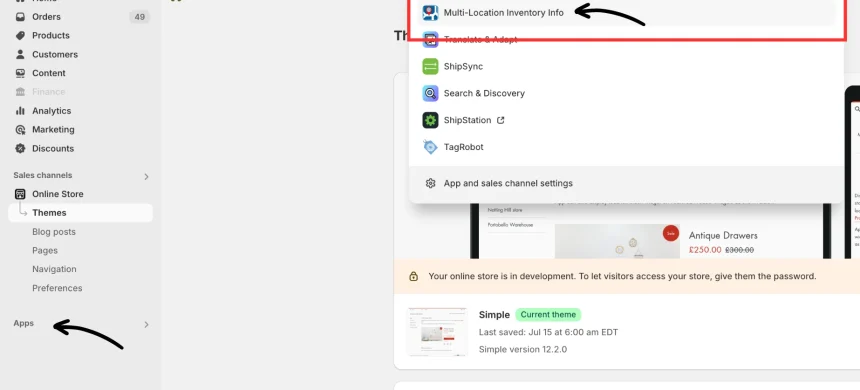
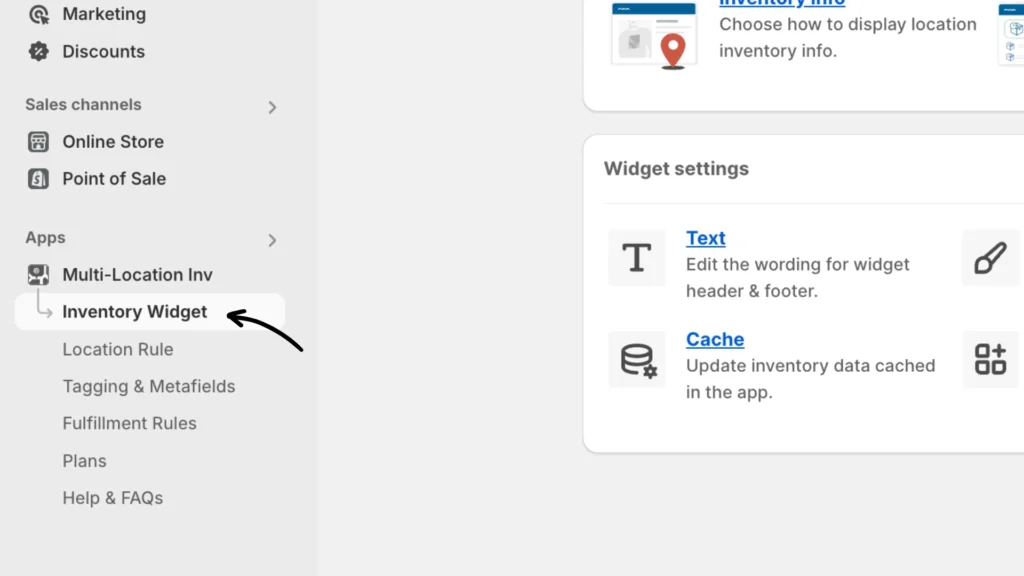
Once the Multi-Location Inventory app is added, click the Inventory Widget option under it. This will open its setup and configuration page.
Check the status and click to enable the widget as needed.
If your app widget is not displaying on your product page, please follow this article to activate the app embed.
Note: If the widget still does not display after that, this issue might be due to the app having trouble locating the “Add to Cart” button on your theme, which it uses to inject the widget.
Solution
Here are two solutions to address this:
Solution #1: Using App Blocks (if your theme supports it)
- Check if your theme supports app blocks: Go to your theme’s documentation or settings to see if it supports app blocks.
- Follow the steps at the support link: Visit this support page for detailed instructions on adding the widget using app blocks.
- Add the widget to your product page: See Step 4 of the documentation for placing the widget anywhere you like on your product page.
Solution #2: Using Advanced Placement (for older themes)
- Check if your theme is an older version: If your theme does not support app blocks (i.e. no Apps section when customizing a theme), you will need to use the advanced placement method.
- Visit the theme modification support page: Go to this support page for instructions on how to modify your theme.
- Modify your theme using Liquid: Follow the steps to manually place the widget by modifying your theme’s Liquid files. If you’re unfamiliar with or uncomfortable with modifying the theme, you can contact the support team for assistance.
Additional Consideration
Check Product Stock Status: Ensure the product is in stock. If it’s out of stock, the widget will not display. Also, enable Track Quantity from Shopify products.
If you encounter any issues, don’t hesitate to contact our support team for further assistance.