
Fix invalid rule error
Is the app showing an invalid rule error like the image below?
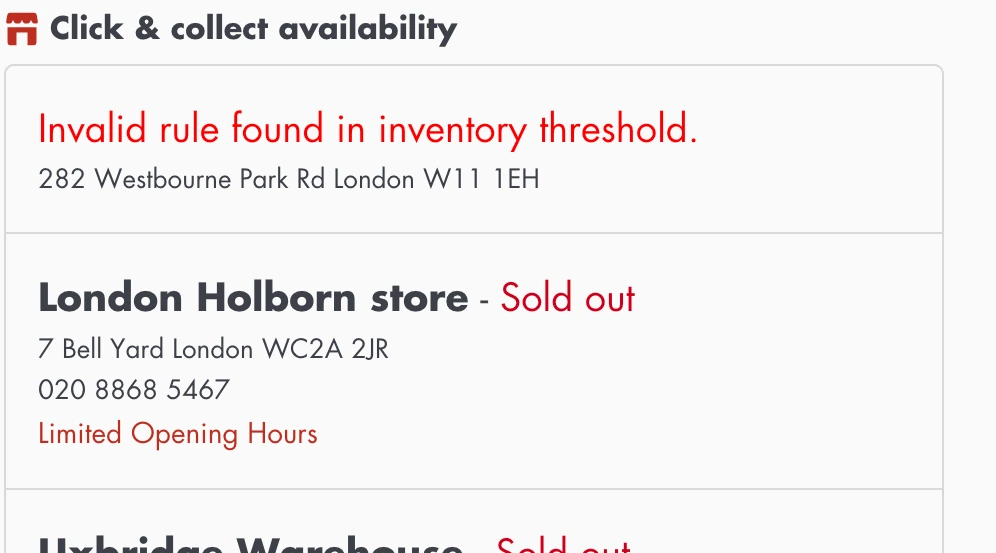
This knowledge article shows what triggers the error and how to fix it.
What is an “Invalid rule…” error?
The “Invalid rule…” error occurs when the app cannot match the product’s stock with any threshold rules configured. See the below example, which shows the following threshold message rules configuration (accessible via Inventory Widget > Inventory Info):
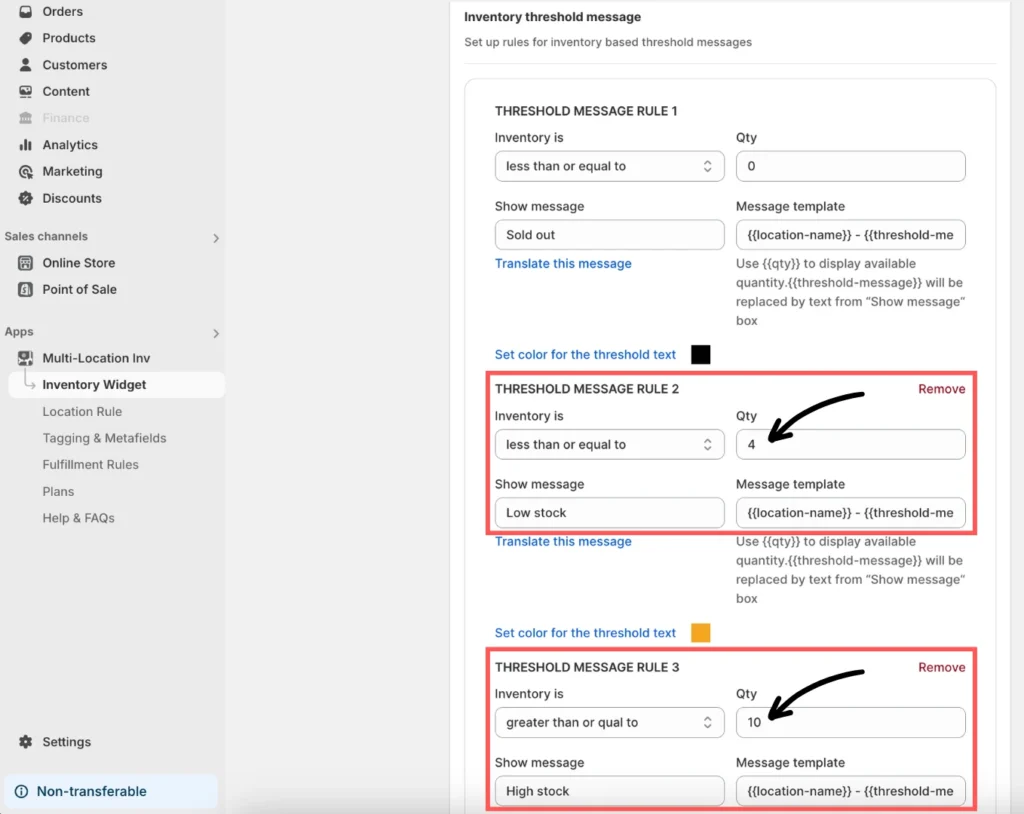
[Sample] Threshold message rules configuration
- THRESHOLD MESSAGE RULE 1: Less than or equal to “0” → Show “Sold out” message
- THRESHOLD MESSAGE RULE 2: Less than or equal to “4” → Show “Low stock” message
- THRESHOLD MESSAGE RULE 3: Greater than or equal to “10” → Show “High stock” message
Pay attention to the rules set above. If the product has a stock level of 6, it doesn’t meet any criteria because it’s neither less than 4 nor greater than 10. The app will be unable to determine what to display, resulting in an “Invalid rule” error.
How to fix the error
Update your threshold rules to ensure that the numbers are in consecutive order. For example, to fix the above rule, change “Inventory is greater than or equal to” to 5 under THRESHOLD MESSAGE RULE 3.
Need help? You may contact our support team for assistance!