
Set up primary & secondary locations
The primary location feature displays stock availability at your main location when products are in stock. If products become out of stock at the main location, they will show availability at other locations. Only the selected location will be displayed on the inventory widget and the other locations will be hidden.
How to set your primary location
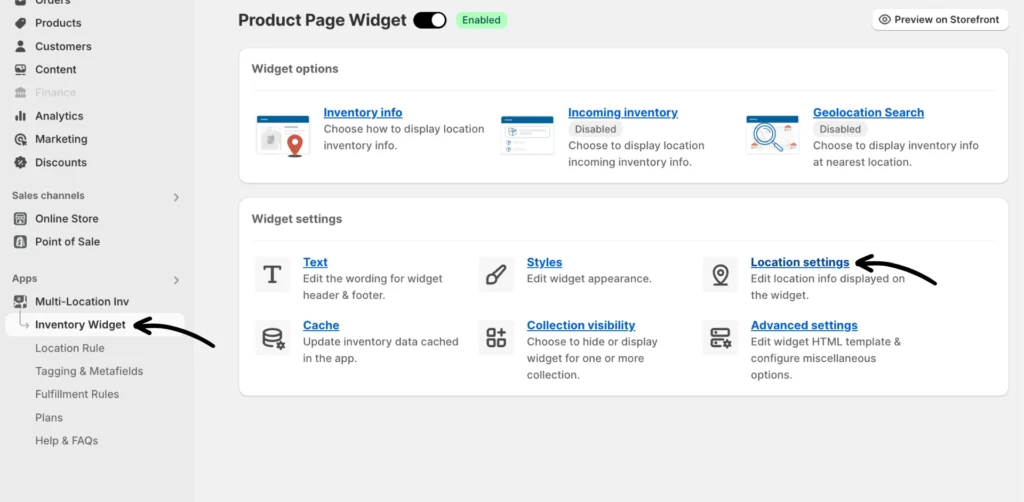
Go to the app’s Inventory Widget and click Location settings.
Under Location settings, scroll down to “Primary location” and set a location as primary.
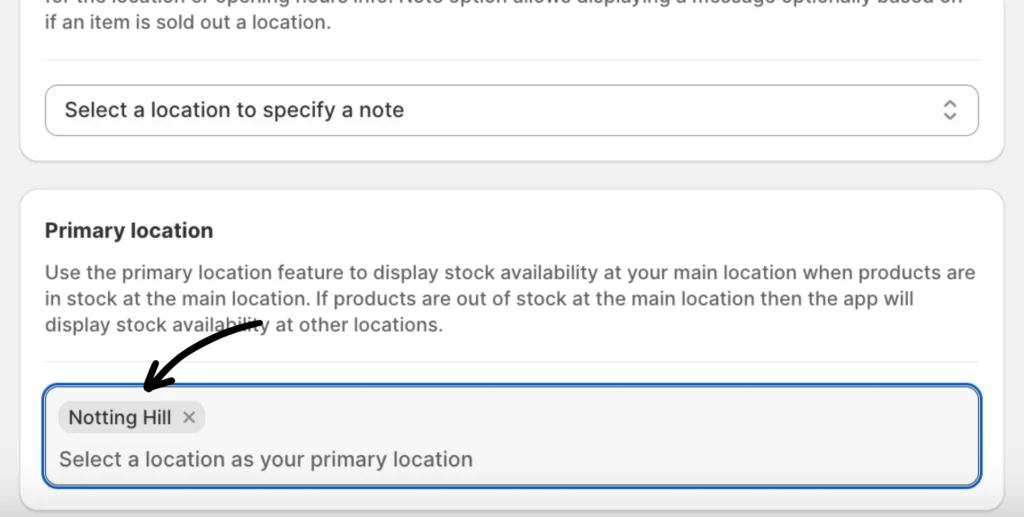
Be sure to click Save to apply the setting.
Before and after setting a primary location
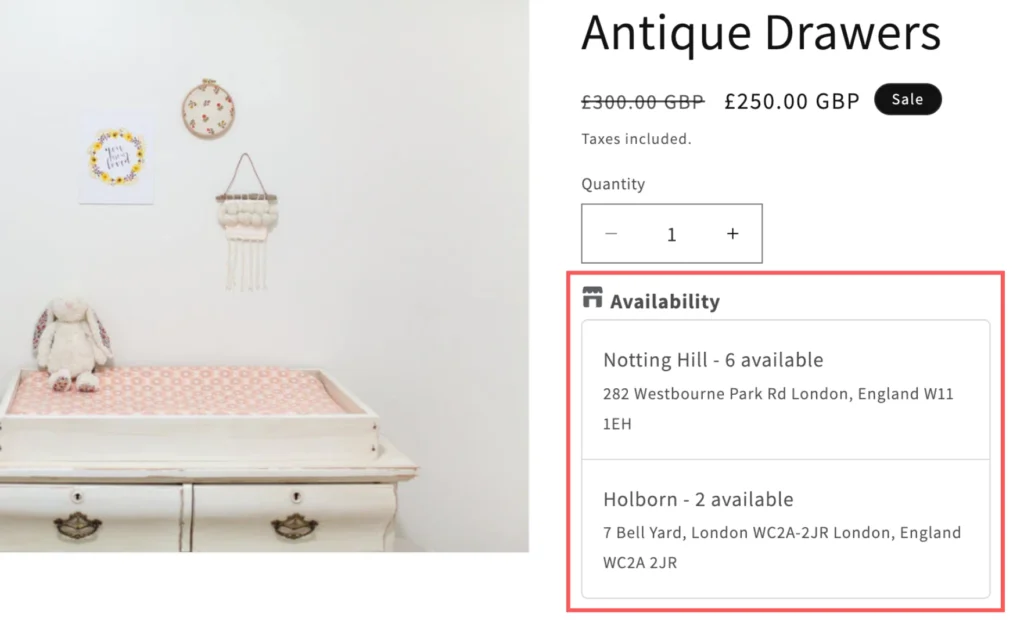
What the storefront looks like before setting a primary location:
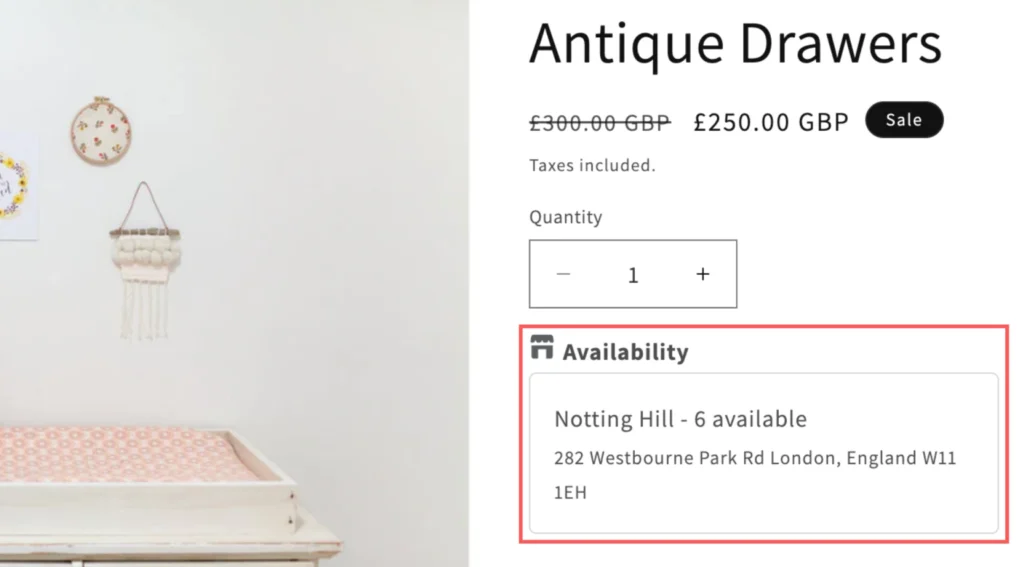
What the storefront looks like after setting a primary location (Example: Notting Hill)
If you encounter any issues, don’t hesitate to contact our support team for further assistance.